
Table QR codes
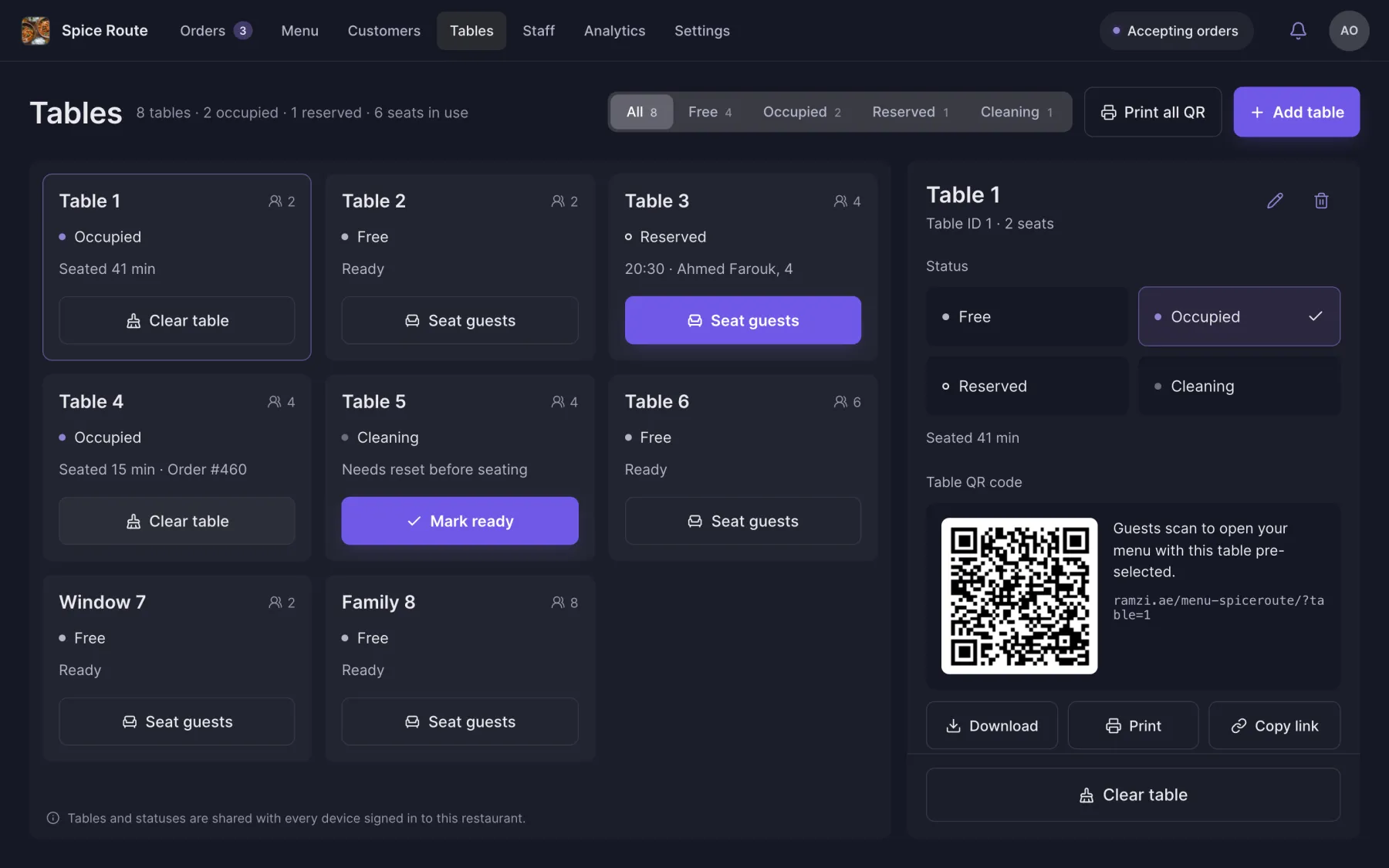
Download or print a QR code for each table. Guests scan it to open your menu with their table already filled in.
Who can do thisOwnerManagerStaff
Every table has its own QR code. When a guest scans it with their phone camera, your storefront opens with Dine In selected and their table number filled in. Their order arrives on your board tagged with the table.
#Get a table's QR code
- Go to Tables and click the table.
- Under Table QR code, choose:
- Download to save the QR code as an image, for a designer or a print shop.
- Print to print it straight away.
- Copy link to copy the table's ordering link.
#Print every table at once
Click Print all QR at the top of the Tables page. A print-ready sheet opens with one QR code per table, each labelled with the table name and Scan to view the menu and order. Print it, cut the codes out, and place one on each table.
Put the codes in table stands or laminate them so they survive spills. Test each one with your phone before service: scan it and check that the right table number appears at checkout.
#If you rename or delete a table
- Renaming a table, or changing its seats, doesn't change its QR code. The printed code keeps working.
- Deleting a table breaks its QR code. If you add a new table with the same ID later, the old printed code works again for the new table.