
Label printer
Print a sticky label for each delivery and pickup bag from a Bluetooth label printer.
Who can do thisOwnerManagerStaff
A bag label shows the order number, order type, customer name and the items, so the right bag goes to the right driver or customer. Labels are for delivery and pickup orders. Dine-in orders don't need one.
Ramzi works with most Bluetooth label printers that use TSPL or ESC/POS, such as the WDlink WD8220. Arabic names print correctly.
#What you need
- A Bluetooth label printer and a roll of labels.
- Chrome on Android (or Chrome on a computer). iPhone, iPad and Firefox can't connect to Bluetooth printers. On those, use Share label instead (see below).
#Connect the printer
- Turn the printer on. Close the printer's own app (for example Print Label) so it lets go of the printer.
- In the dashboard, go to Settings → Printers and scroll to Label printer (Bluetooth).
- Click Connect printer and choose your printer from the list.
- Choose your Label size (width × height, mm). It is printed on the label roll or its box.
- Leave Printer language on TSPL. If the test label comes out blank or as random text, switch to ESC/POS.
- Click Print test label.
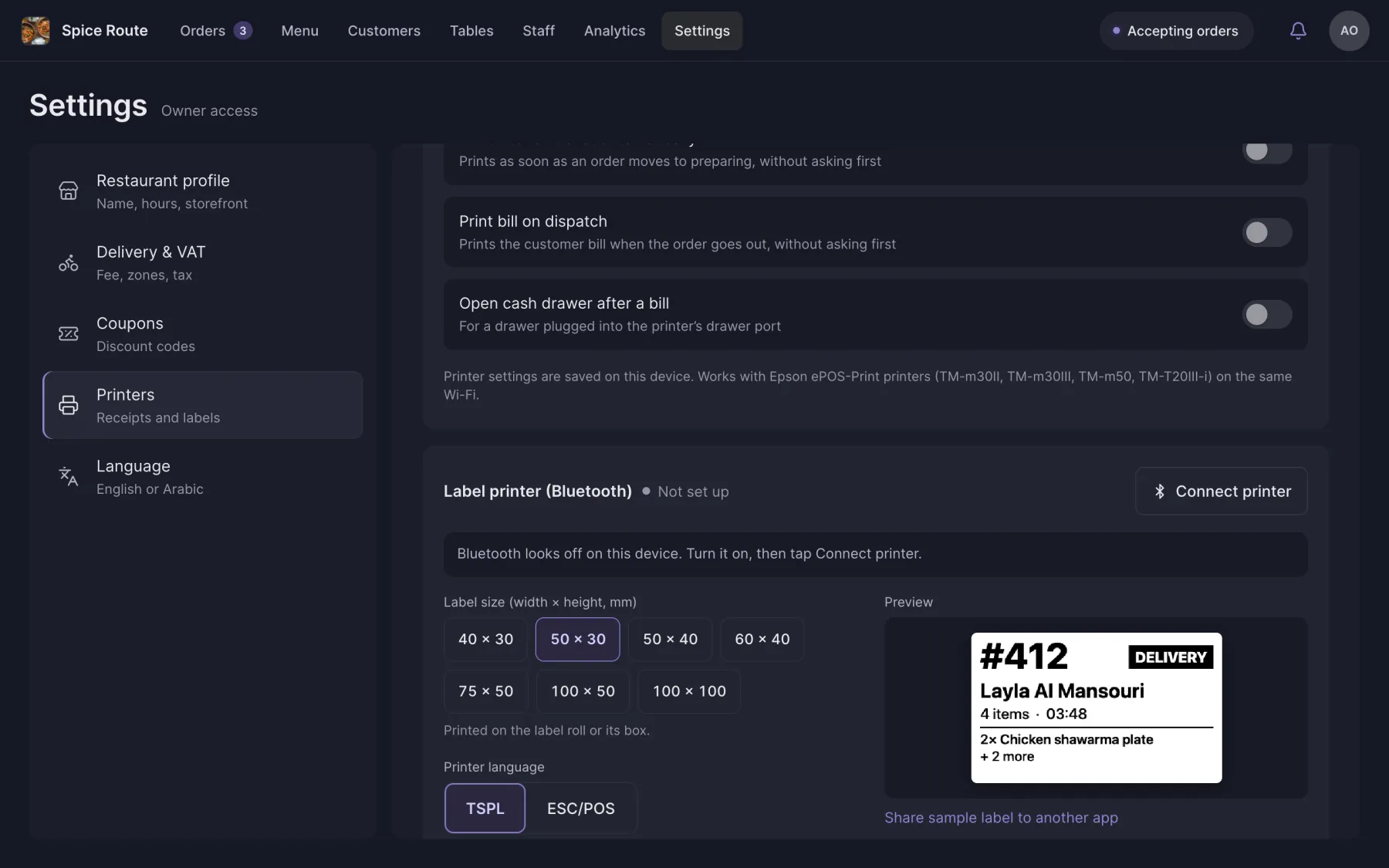
The Preview shows how a label will look at the size you picked. Settings are saved on this device straight away.
If your printer doesn't show up in the list, it may only support older Bluetooth, which browsers can't use. If you see Bluetooth looks off on this device, turn Bluetooth on and try again.
#Print labels automatically
Turn on Print a label when an order starts preparing. Every delivery and pickup order then prints its label when you click Start preparing.
#Print a label for one order
Open the order and click the tag button at the top right of the order window.
#On iPhone and iPad: Share label
Open the order and click the share button next to the tag. The label is shared as an image. Choose your printer's own app (for example Print Label) and print from there.
#Label sizes
40 × 30, 50 × 30, 50 × 40, 60 × 40, 75 × 50, 100 × 50 and 100 × 100 mm. The default is 50 × 30 mm. If an order has many items, Ramzi continues on a second label.