
Kitchen tickets
Print a ticket for the kitchen when an order starts preparing, by hand or automatically.
Who can do thisOwnerManagerStaff
A kitchen ticket lists what to cook: the order number, order type, each item with its quantity, size, extras and item notes, and the customer's order note. It has no prices.
#Print when you start preparing
When you click Start preparing on an accepted order, Ramzi shows the kitchen ticket first:
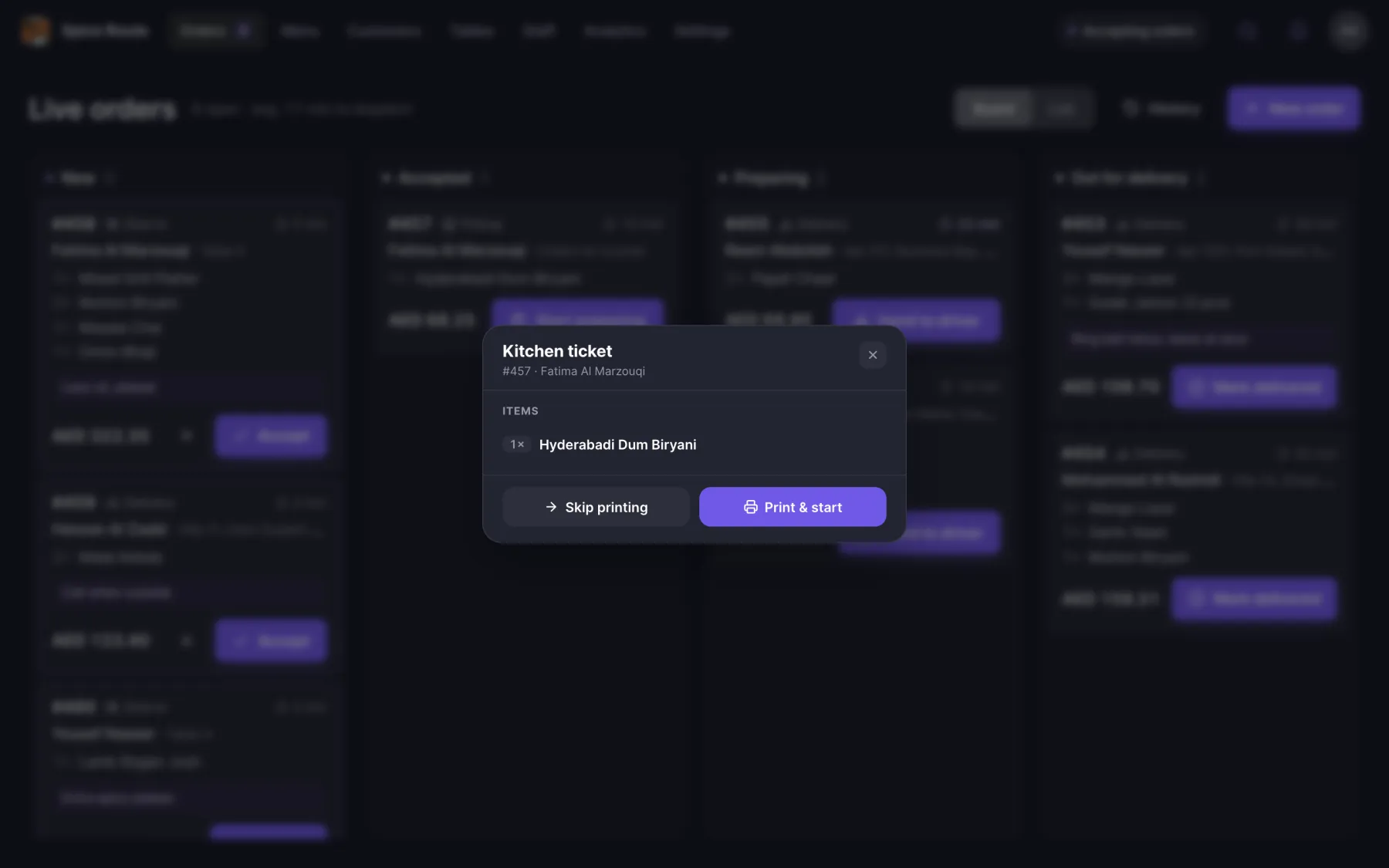
- Print & start prints the ticket and moves the order to Preparing.
- Skip printing moves the order to Preparing without printing.
- ✕ closes the window and leaves the order in Accepted.
If you have a Bluetooth label printer connected too, the order's bag label also prints at this point (delivery and pickup orders). See Label printer.
#Print automatically
To skip the window and print every ticket straight away:
- Go to Settings → Printers.
- Turn on Print kitchen ticket automatically.
- Click Save changes.
Now clicking Start preparing prints the ticket and moves the order in one step. This needs a receipt printer set up on that device. See Connect a receipt printer.
#More than one copy
Set Kitchen copies in Settings → Printers, for example 2 if you hand one ticket to the grill and one to the pass.
Tickets print in English on every device, so the whole kitchen team can read them, even when the dashboard is in Arabic.