
Add and edit items
Add a dish with its photo, names, description, price and category, and change any of them later.
Who can do thisOwnerManager
#Add an item
You need at least one category first. See Categories.
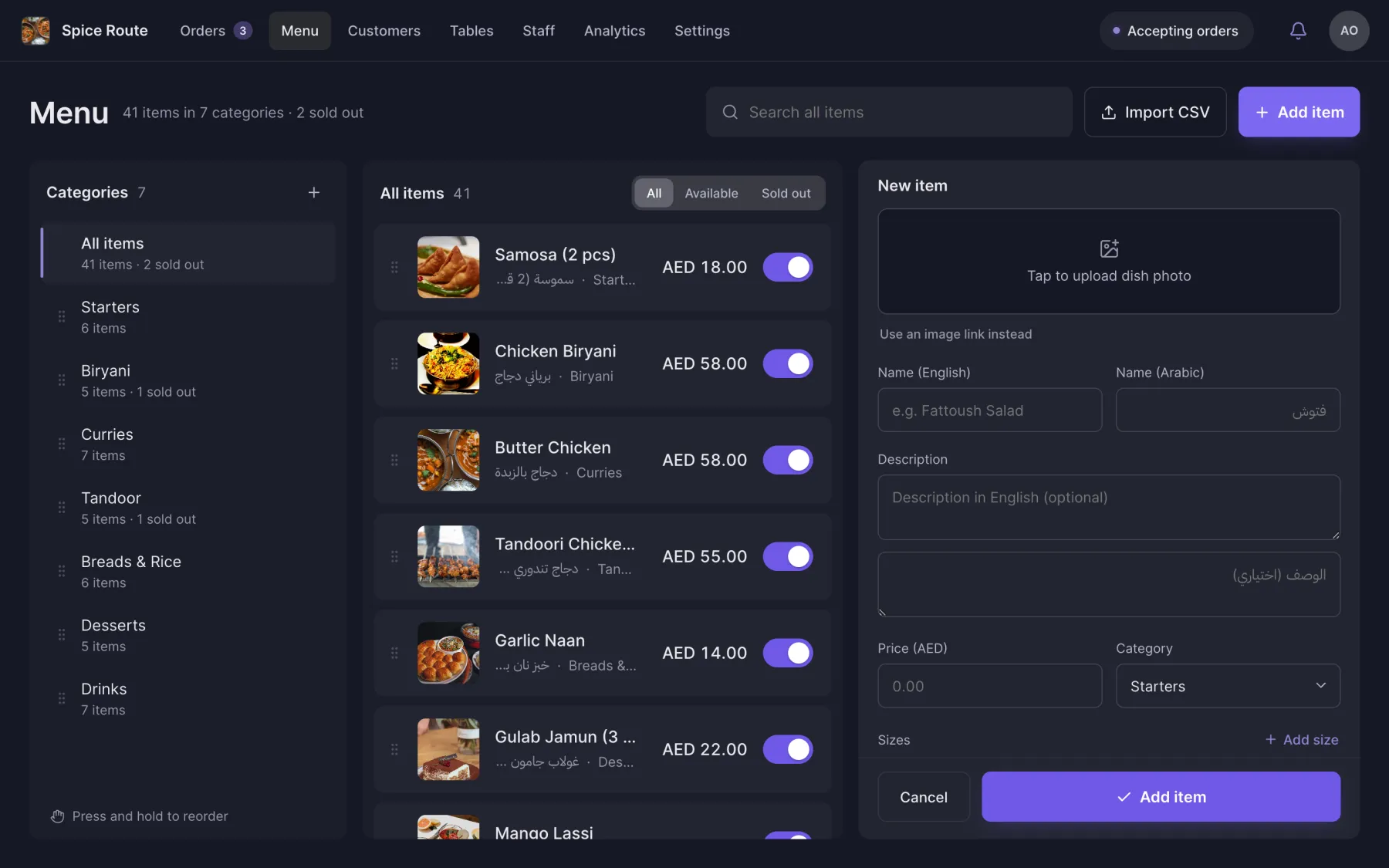
- On the Menu screen, click Add item (top right). A blank New item form opens in the editor.
- Click Tap to upload dish photo and choose a photo from your device. You can also click Use an image link instead and paste a link.
- Enter the Name (English), for example Chicken Biryani. This is required.
- Enter the Name (Arabic), for example برياني دجاج.
- Add a Description in English and in Arabic. Both are optional, but they help customers choose.
- Enter the Price (AED).
- Choose the Category.
- Optionally, add Sizes, Extras, Dietary tags and Allergens. See Sizes and extras and Dietary tags and allergens.
- Click Add item. It appears on your storefront straight away.
#Edit an item
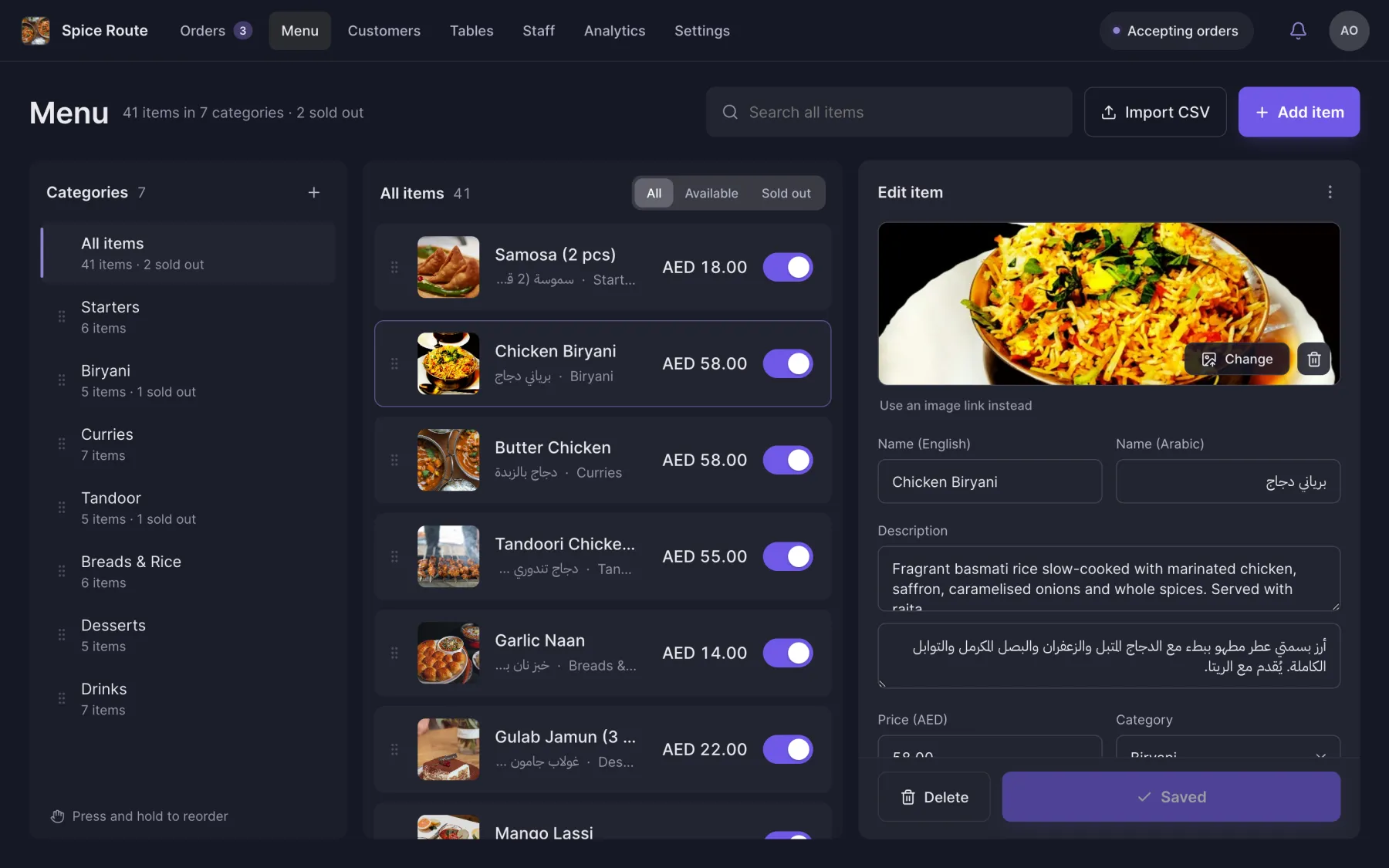
- Click the item in the list. Its details open in the editor.
- Change what you need. The button at the bottom changes from Saved to Save changes.
- Click Save changes.
If you click another item before saving, Ramzi asks whether to discard unsaved changes.
#Change or remove the photo
- Click Change on the photo to upload a new one.
- Click the bin on the photo to remove it.
Photos up to 10 MB are accepted. Ramzi compresses them for you, so they load quickly on customers' phones.
Tip
Use bright, close-up photos taken in daylight, all in the same style. A landscape photo of about 1200 × 900 pixels looks good everywhere on the storefront.
#Delete an item
Click Delete at the bottom of the editor (or the ⋮ menu → Delete item), then confirm. This can't be undone. To take an item off sale for a while, mark it sold out instead. See Mark items sold out.
#Item fields
| Field | Required | What it is for |
|---|---|---|
| Photo | No | Shown on the item's card and page on your storefront. |
| Name (English) | Yes | Shown to customers using English, and on tickets and bills. |
| Name (Arabic) | No | Shown to customers using Arabic. |
| Description (English and Arabic) | No | A short line about the dish, shown on the item's page. |
| Price (AED) | Yes | The base price before VAT. Sizes and extras add to it. |
| Category | Yes | Which section of the menu the item appears in. |
| Sizes, Extras | No | Options customers choose when they add the item. |
| Dietary tags, Allergens | No | Labels shown on the item's page. |
| Available | — | Off marks the item sold out. |