
How an order moves
Take an order from New to Delivered. Each button moves it one stage forward, and the customer sees every change on their tracking page.
Who can do thisOwnerManagerStaff
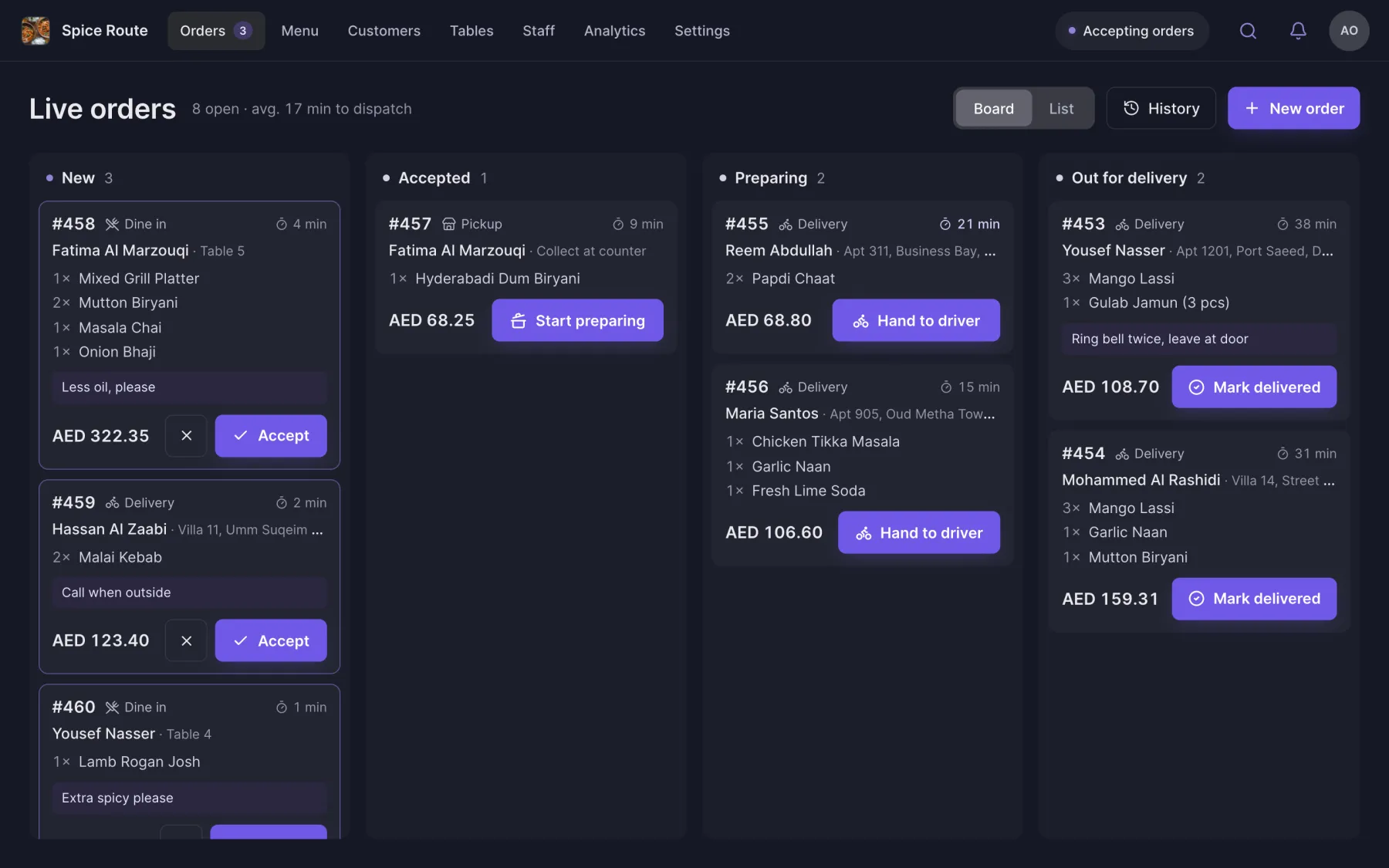
Every order goes through the same stages. You move it forward with one button on its card. The button's label changes with the stage and the order type.
#The stages
New → Accepted. Click Accept on the card. This tells the customer you have their order and stops the alert sound for it.
Accepted → Preparing. Click Start preparing when the kitchen starts. If you use a printer, Ramzi offers to print the kitchen ticket first. See Kitchen tickets.
Preparing → Out. When the food is ready, click the button for the order type:
- Hand to driver for delivery orders.
- Ready for pickup for pickup orders.
- Serve to table for dine-in orders.
If you use a printer, Ramzi offers to print the customer bill first. See Customer bill.
Out → Done. Click Mark delivered (delivery) or Mark completed (pickup and dine-in). The order moves to History.
#The next-step button for each order type
| Stage | Delivery | Pickup | Dine-in |
|---|---|---|---|
| New | Accept | Accept | Accept |
| Accepted | Start preparing | Start preparing | Start preparing |
| Preparing | Hand to driver | Ready for pickup | Serve to table |
| Out for delivery | Mark delivered | Mark completed | Mark completed |
Delivery orders can also be moved by your drivers in the rider app. When a driver taps Picked up, start delivery, the order moves to Out for delivery. When they tap Mark as delivered, it closes. See The rider app.
#What the customer sees
The customer's tracking page updates by itself at each stage: Order received → Accepted → Preparing → On the way (or Ready for pickup) → Delivered. See How customers order.
#Good habits
- Accept new orders quickly. The customer is waiting on their tracking page, and the alert keeps sounding until you accept or decline.
- Work top to bottom. The oldest order in each column is at the top.
- Watch the timers. A highlighted timer means the order has waited more than 20 minutes.
- Close orders when they're done. Orders left in Out for delivery stay on the board and in the open-orders count.