
The rider app
What drivers see on their phone, and how they pick up and deliver orders. Share this page with your drivers.
Who can do thisDriver
The Ramzi Rider app is a simple phone app for your drivers. It shows which delivery orders are ready to collect, where to take them, and how much cash to collect.
#Sign in
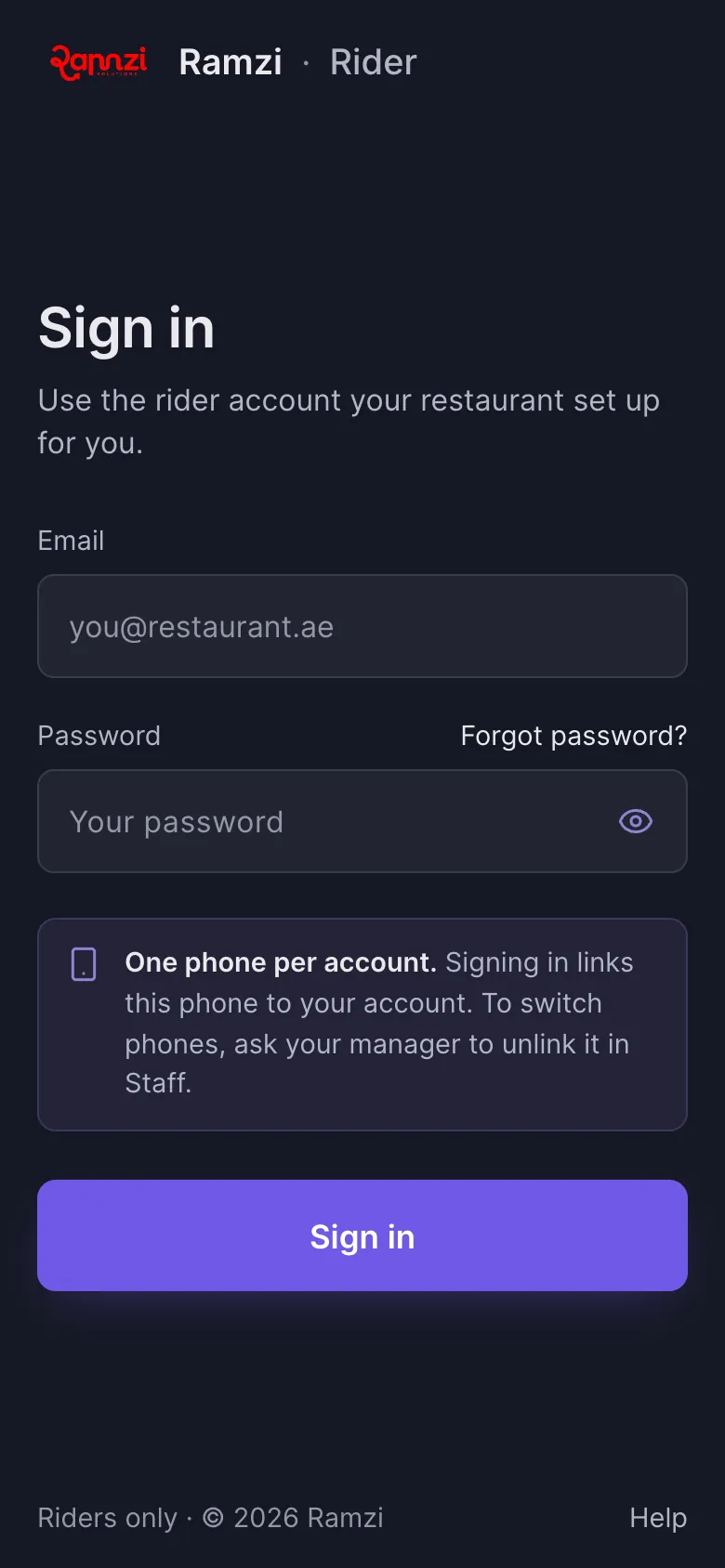
Drivers open go.ramzi.ae on their phone and sign in with the email and password their manager gave them. See Add a driver.
#The dashboard
The home screen lists the driver's orders:
- On the way: orders they are delivering now.
- Assigned: orders being prepared that are ready to collect from the restaurant, marked To pick up.
- Delivered today: how many deliveries the restaurant has completed today.
The list refreshes by itself. A sound plays when a new order is ready to pick up.
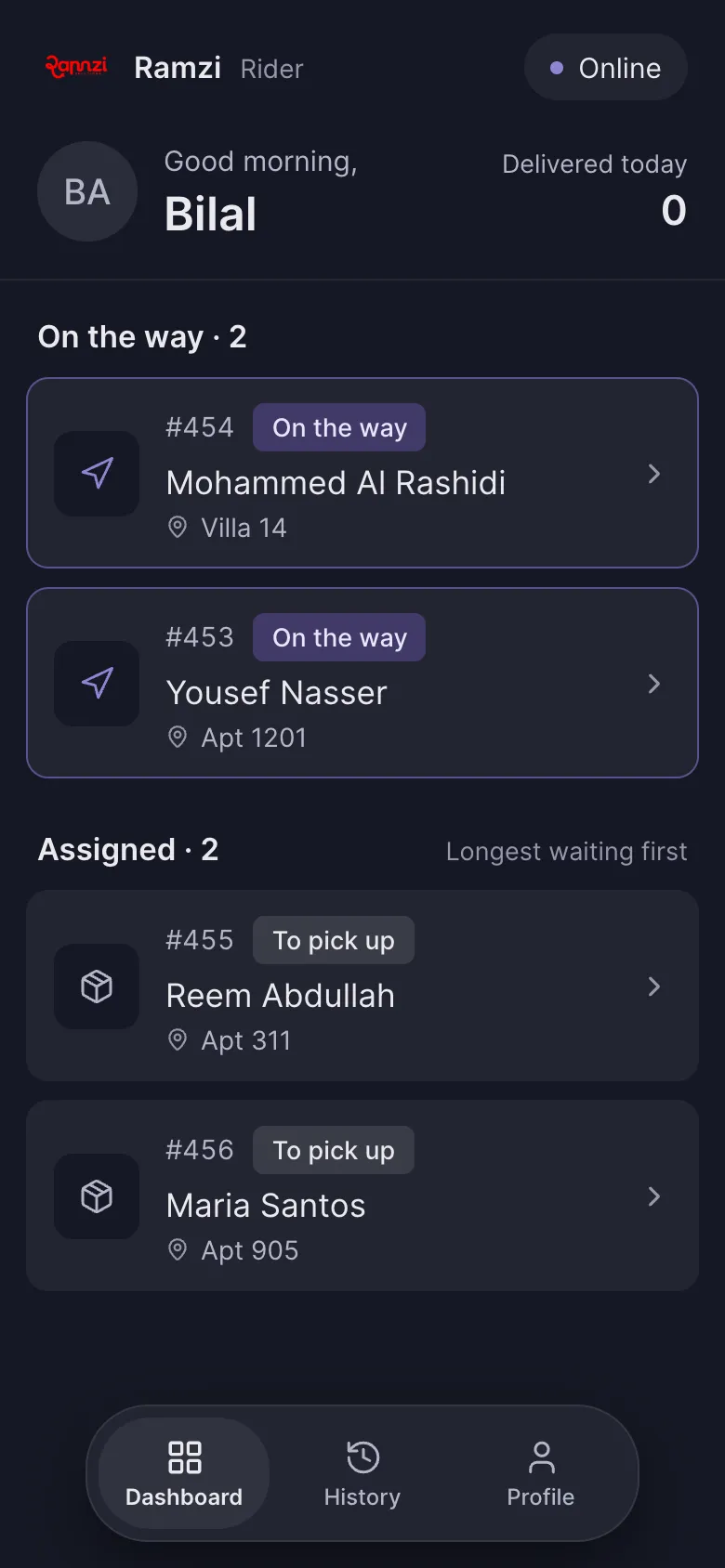
Only delivery orders appear in the Rider app. They show up as soon as the kitchen marks them Preparing, so the driver can head over in time.
#Deliver an order
- Tap the order. Its details open: pickup and drop-off addresses, the customer's name and phone, the items, the amount to collect and any customer note.
- Tap Open next to the pickup or drop-off address to open it in your maps app.
- Collect the food, then tap Picked up, start delivery. The order moves to On the way in the app, and to Out for delivery on the restaurant's board. The customer's tracking page changes to On the way.
- Use the phone or message buttons to contact the customer if you need to.
- Hand over the food, collect the cash, and tap Mark as delivered. The order closes everywhere.
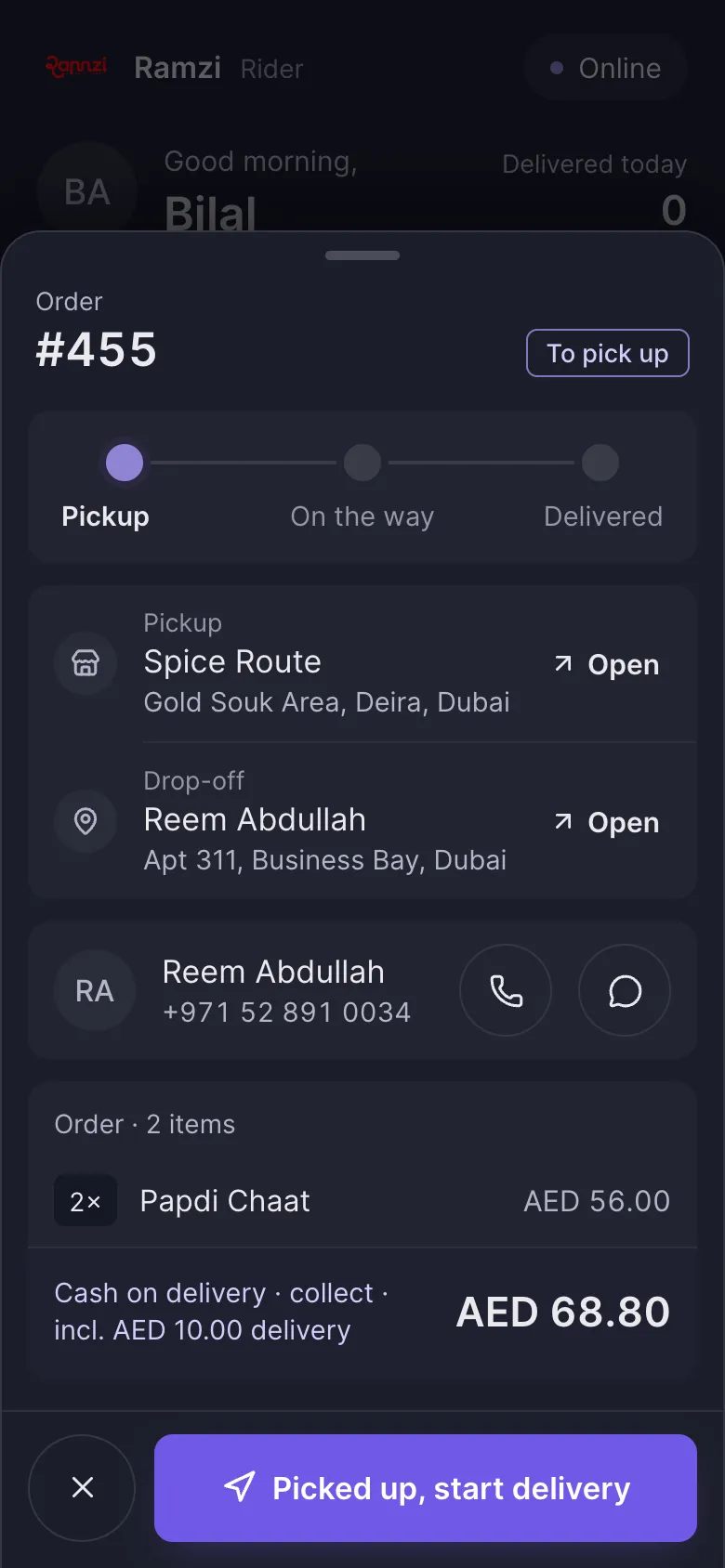
The amount line tells the driver what to collect, for example Cash on delivery · collect · incl. AED 10.00 delivery.
#History
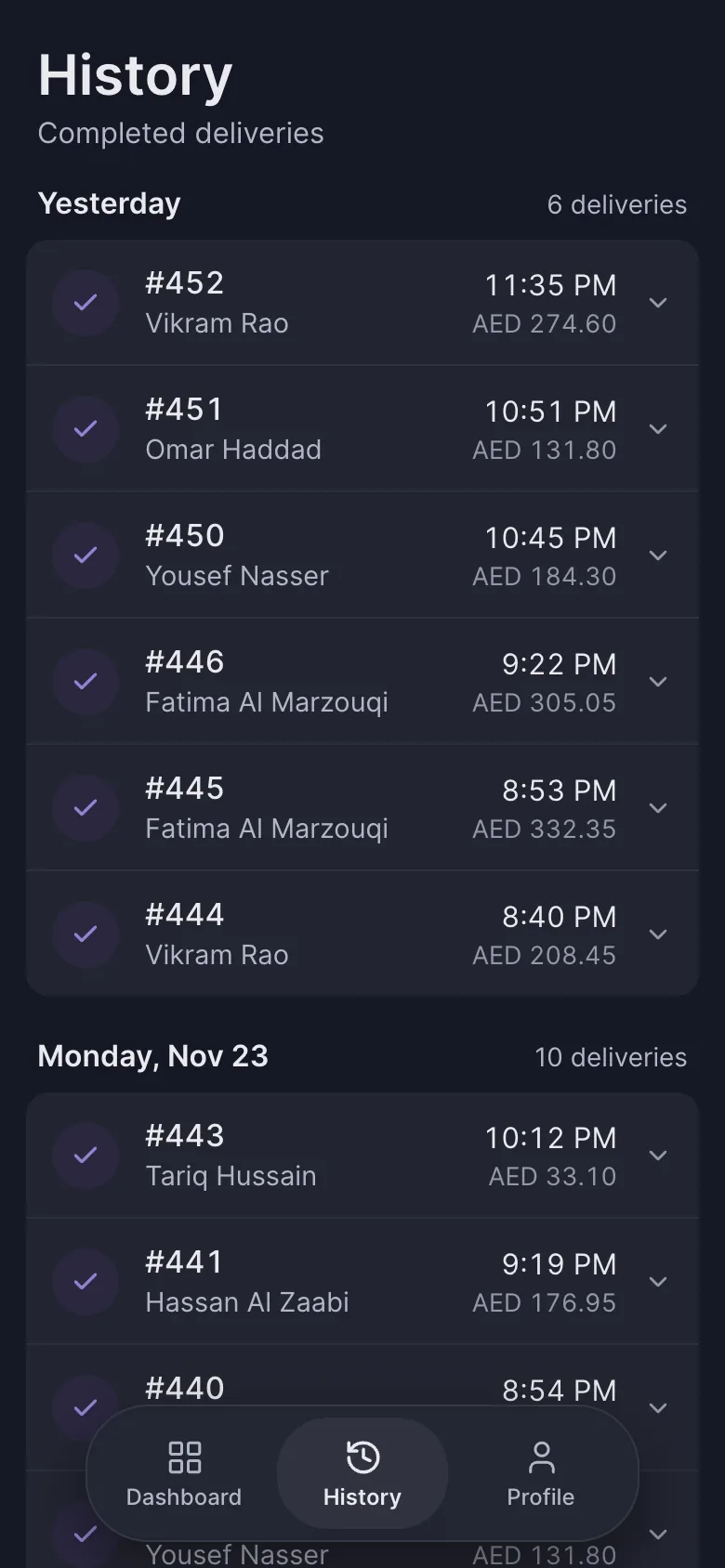
The History tab lists completed deliveries with the time and amount.
#Profile
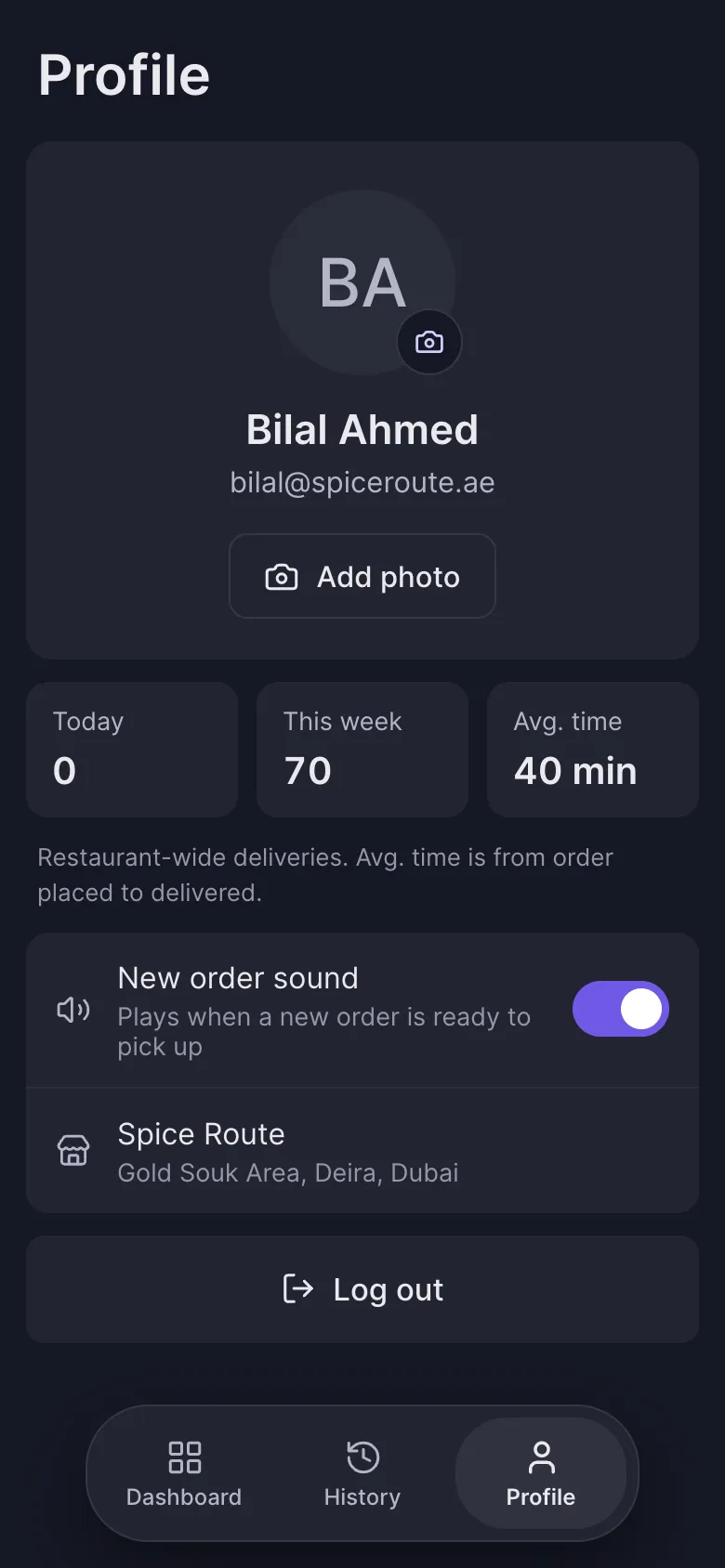
The Profile tab shows:
- The driver's name and email, and Add photo for a profile picture (saved on that phone).
- Today, This week and Avg. time (from order placed to delivered), counted across the restaurant.
- New order sound, to turn the alert on or off.
- The restaurant's name and address.
- Log out.
#Tips for drivers
- Keep the app open while on shift, with sound on and the phone not on silent.
- Check the customer note before leaving. It often has gate codes or "call when outside".
- Your account works on one phone only. If you change phones, ask your manager to unlink the old one.