
Deactivate or delete someone
Remove a team member's access, either temporarily or for good.
Who can do thisOwnerManager
| Deactivate | Delete | |
|---|---|---|
| Can they sign in? | No | No |
| Can you undo it? | Yes, reactivate them any time | No |
| Their history | Stays | Their account is removed permanently |
| Use it for | Leavers, seasonal staff, someone on leave | Accounts created by mistake |
We recommend deactivating people who leave.
#Deactivate someone
- Go to Staff and click the person.
- Click Deactivate at the bottom.
- Read the message: They're signed out straight away and can't sign in until you reactivate them. Their history stays.
- Click Deactivate.
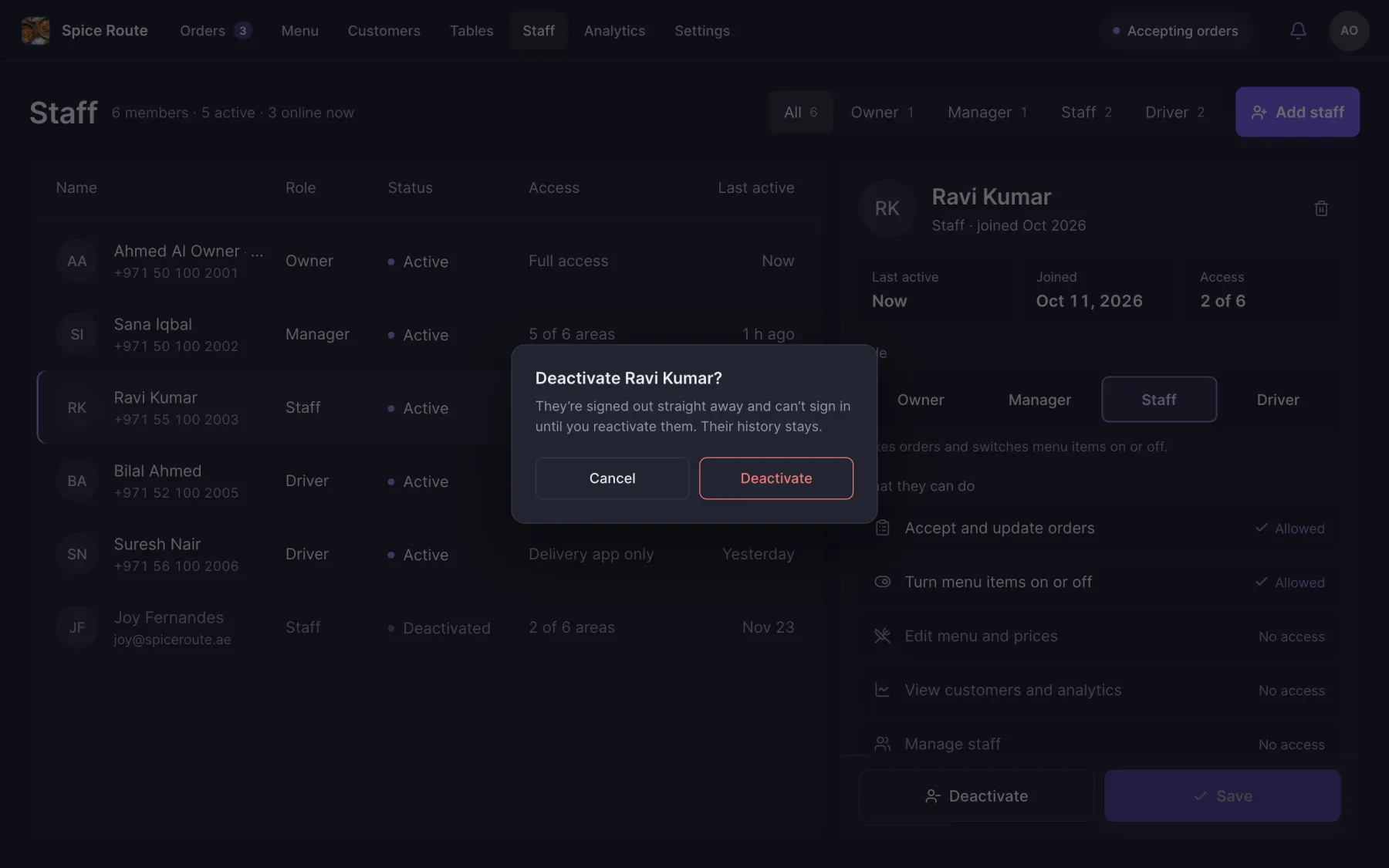
They stay in the list, greyed out, with the status Deactivated.
#Reactivate someone
Click the deactivated person, then click Reactivate. They can sign in again with their old password.
#Delete someone
- Go to Staff and click the person.
- Click the bin next to their name (Delete permanently).
- Read the message: This removes their account permanently. To keep their history, deactivate them instead.
- Click Delete.
Note
You can't deactivate or delete your own account, and a restaurant always keeps at least one active owner.