Signing in and finding your way around
How to sign in to the dashboard, what each part of the screen does, and what to do if you forget your password.
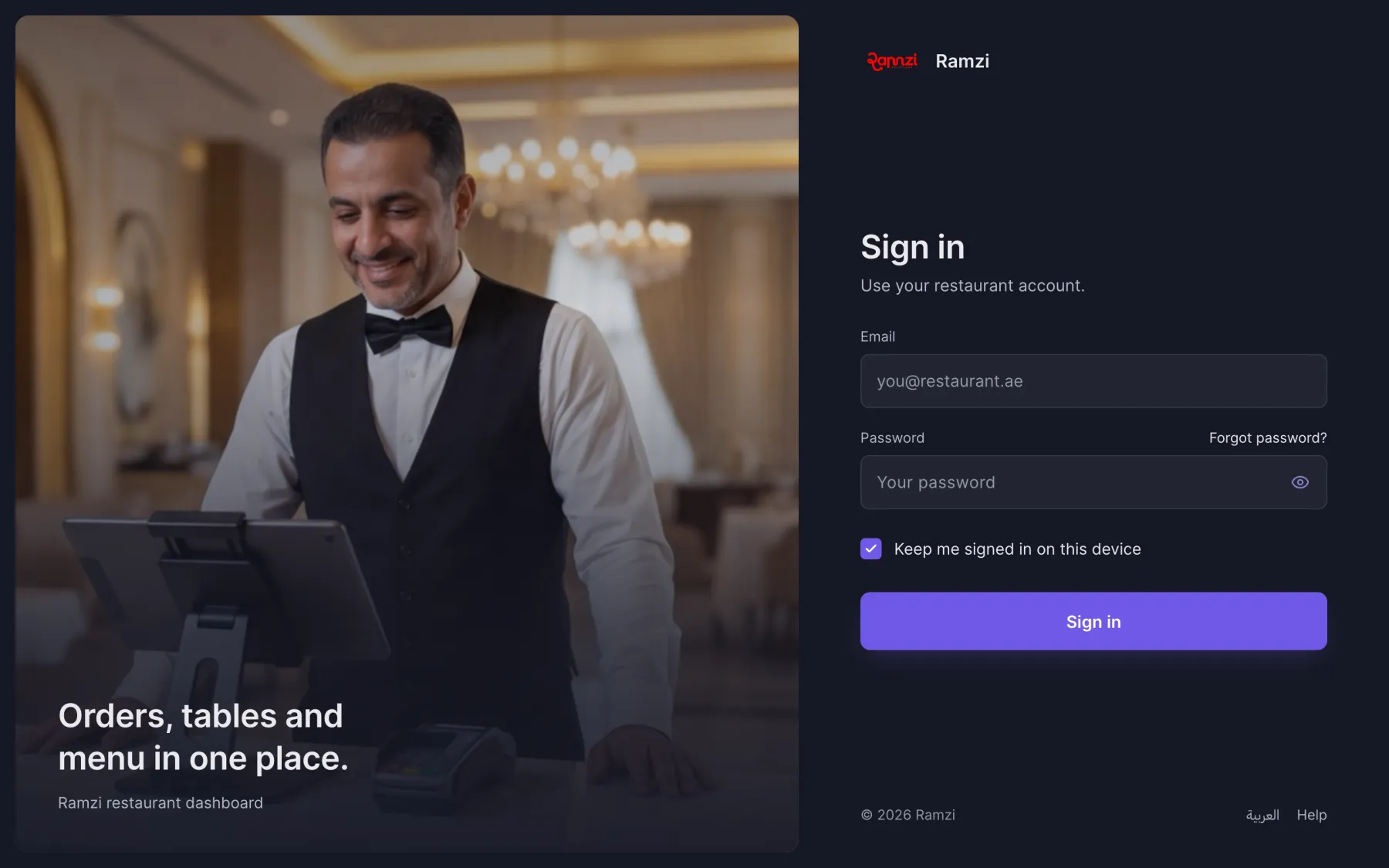
#Sign in
- Go to portal.ramzi.ae in Chrome, Safari or Edge.
- Enter the email and password for your account. Every person on your team has their own account. See Add a staff member.
- Leave Keep me signed in on this device ticked on the restaurant's own tablet or computer. Untick it on a shared or personal device, so you are signed out when the browser closes.
- Click Sign in. You land on the Orders screen.
Note
Drivers do not sign in here. If a driver account tries, the page explains that riders use the Ramzi Rider app and links to it. See The rider app.
#Forgot your password?
Click Forgot password? on the sign-in page. Passwords are reset by the restaurant, not by email:
- Staff and managers: ask the owner or a manager to set a new password for you on the Staff page. See Edit details and passwords.
- Owners: contact Ramzi support and we will help you get back in.
#A tour of the screen
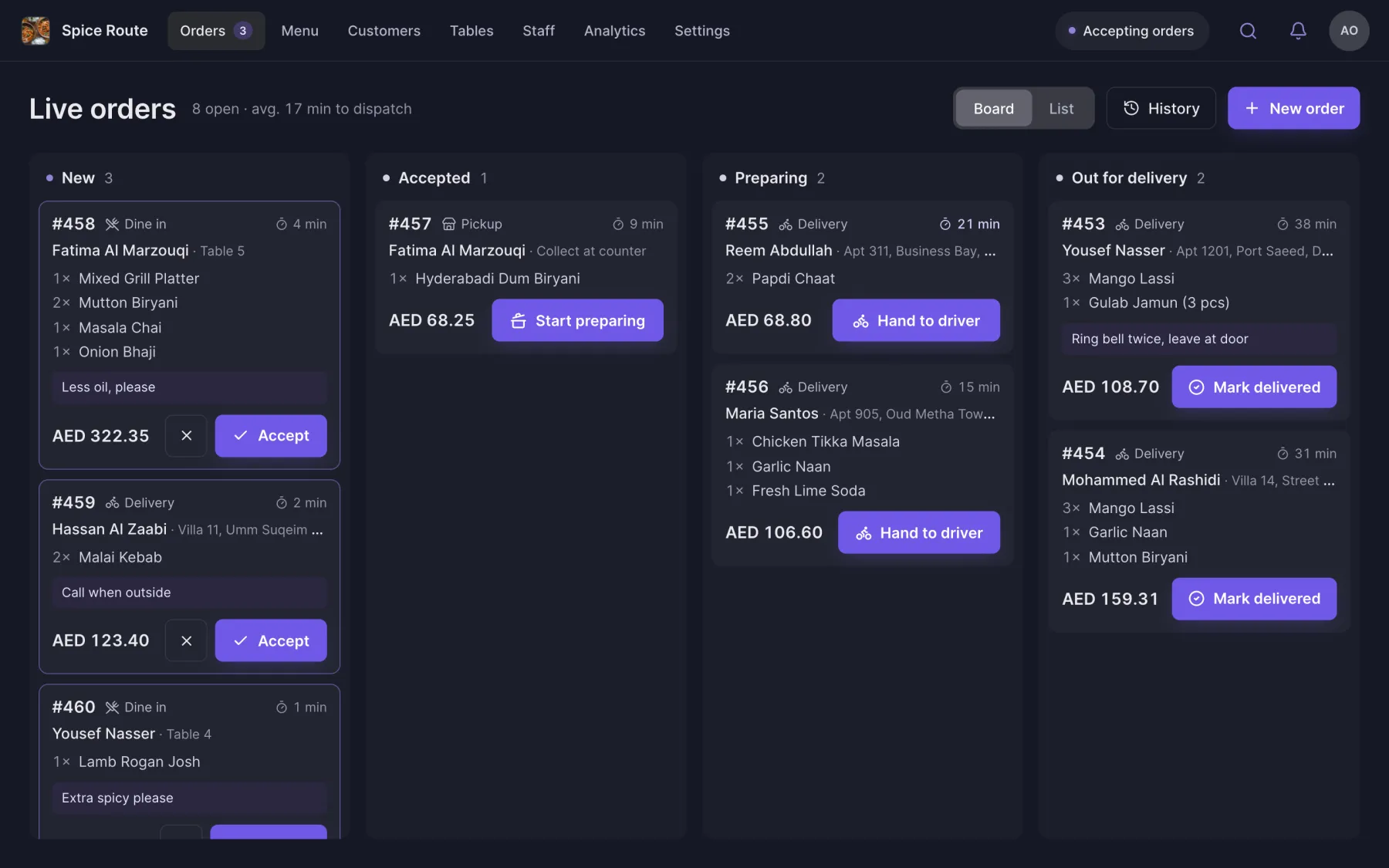
| Part of the screen | What it does |
|---|---|
| Restaurant name and logo (top left) | Shows which restaurant you are signed in to. |
| Page links | Orders, Menu, Customers, Tables, Staff, Analytics and Settings. The number next to Orders is how many new orders are waiting. Some links are hidden for some roles. See Roles. |
| Accepting orders | Shows whether your storefront is taking orders. The owner can click it to pause orders. See Pause orders. |
| Search (magnifying glass) | Finds an order by customer name, phone number or order number. |
| Bell | Turns the new-order sound on or off on this device. See New-order sound and notifications. |
| Your initials | Opens the account menu. |
#The account menu
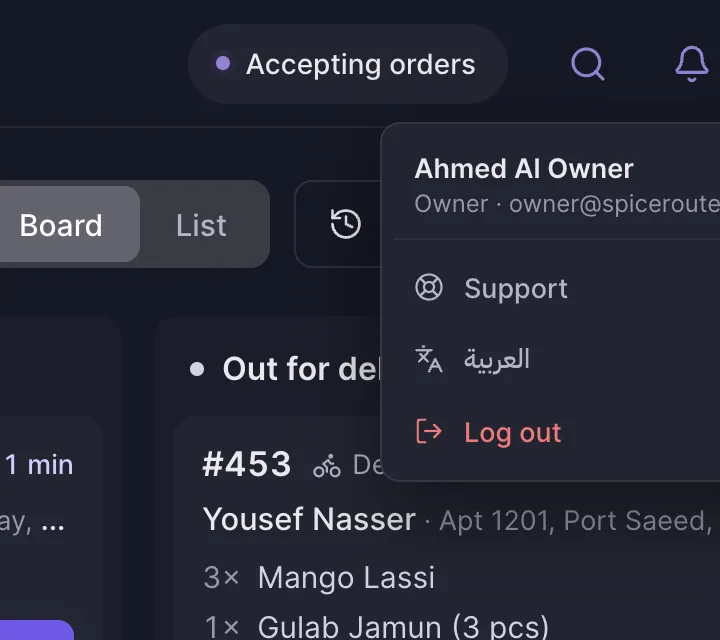
Click your initials in the top right corner to see:
- Your name, role and email.
- Support, to send us a message. See Contact support.
- العربية / English, to switch the dashboard language. See Switch the dashboard to Arabic.
- Log out.
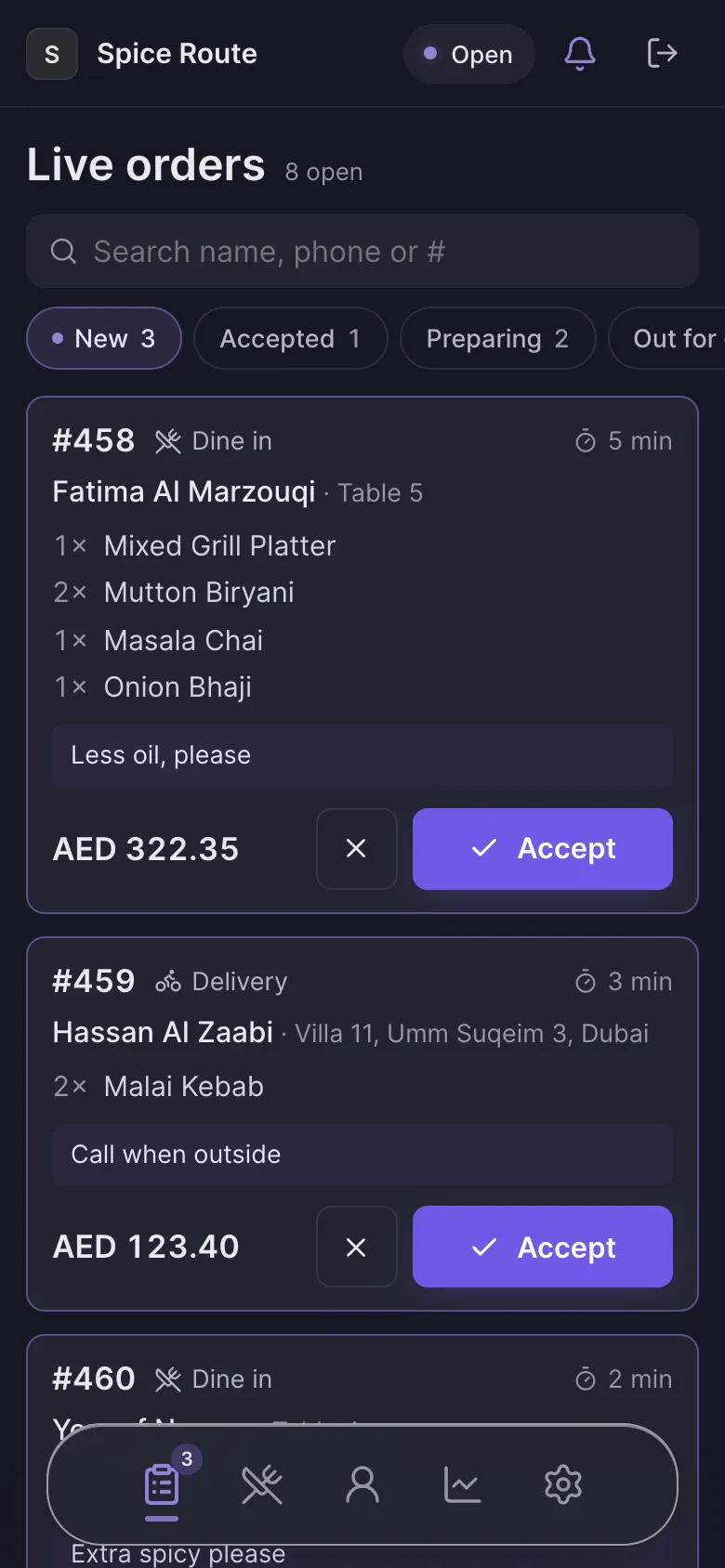
#On a phone
On a phone the main page links (Orders, Menu, Customers, Analytics and Settings) move to a bar at the bottom of the screen, and Orders shows one stage at a time. Use a tablet or computer for Tables and Staff. Tap the stage chips (New, Accepted, Preparing, Out for delivery) to switch.