
Delivery zones
Draw the areas you deliver to on a map. Customers outside your zones can't place delivery orders.
Who can do thisOwner
Delivery zones are areas on a map. When a customer chooses delivery, they check their address first. If it is inside one of your zones, they can order. If not, they see Delivery is not available to this area and can choose pickup instead.
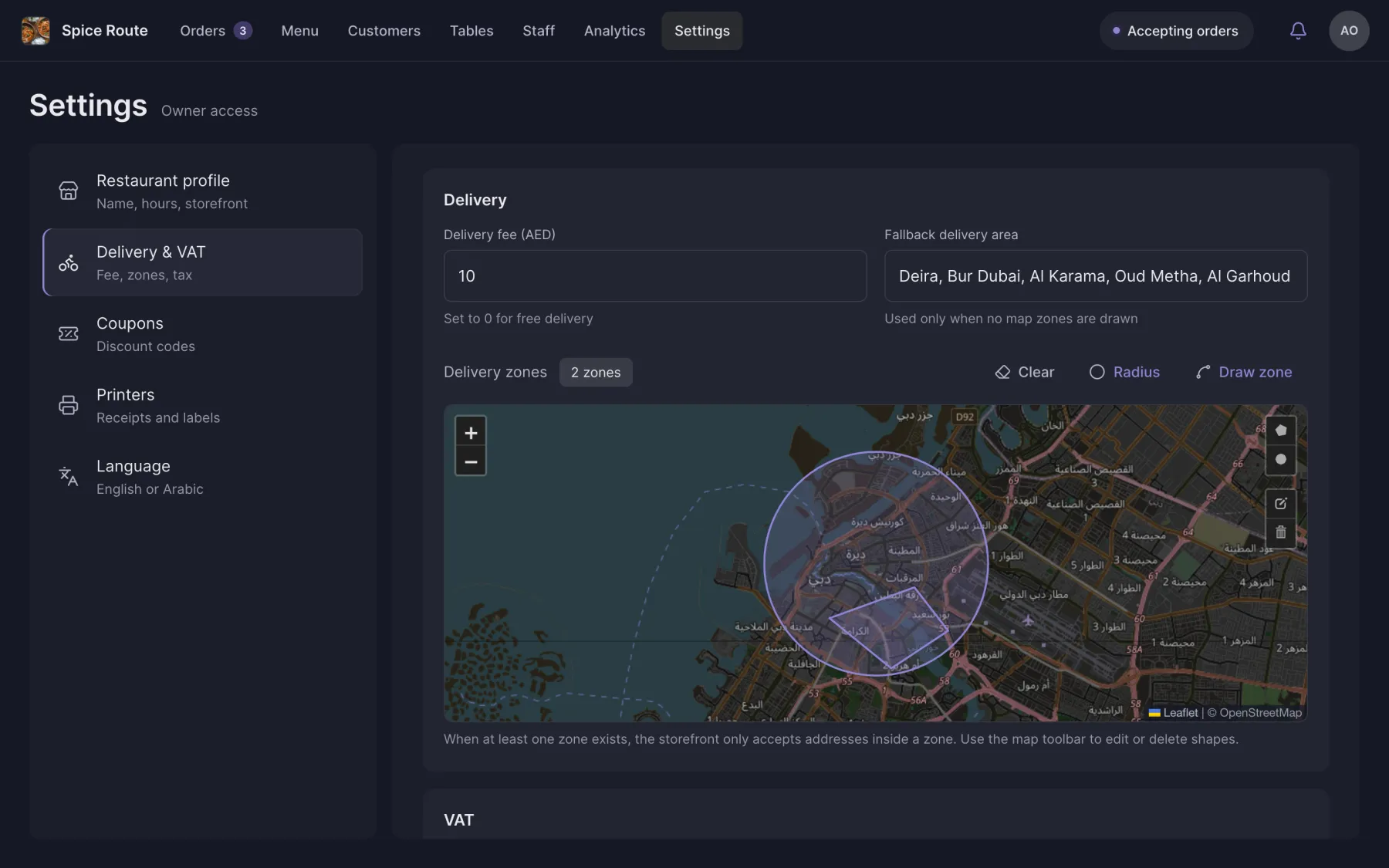
#Draw a zone
You can add as many zones as you like, in two shapes.
#A circle around your restaurant
- Go to Settings → Delivery & VAT.
- Next to Delivery zones, click Radius.
- Click the centre point on the map (usually your restaurant), then drag outwards to set the distance you deliver.
- Release to finish the circle.
- Click Save changes at the bottom of the page.
#A custom area
- Click Draw zone.
- Click on the map to drop a point at each corner of the area. Follow roads or neighbourhood edges.
- Click the first point again to close the shape.
- Click Save changes.
The number next to Delivery zones (for example 2 zones) shows how many you have.
#Edit or remove zones
- Use the edit and delete buttons in the map's toolbar (top right of the map) to reshape or remove one zone.
- Click Clear to remove all zones at once.
- Use + and − to zoom the map.
Always click Save changes afterwards.
#The fallback delivery area
Fallback delivery area is a list of area names, such as Deira, Bur Dubai, Al Karama. It is used only when no zones are drawn: customers' addresses are then checked against these names instead of the map.
Zones on the map are much more accurate than area names. Draw at least one zone.
#How customers check their address
At checkout, customers tap Check Delivery, then search for their address or tap Use precise location. Ramzi checks the point against your zones, and the order is checked again when they place it.
When at least one zone exists, the storefront only accepts addresses inside a zone. If customers say they can't order delivery, check that your zones cover their area.