
Edit details and passwords
Change a team member's name, email, phone or role, and set a new password when they forget theirs.
Who can do thisOwnerManager
#Change someone's details or role
- Go to Staff and click the person.
- Under Role, click a different role to change what they can do. What they can do updates to show their new access.
- Under Details and sign-in, change their Name, Email (used to sign in) or Phone.
- Click Save.
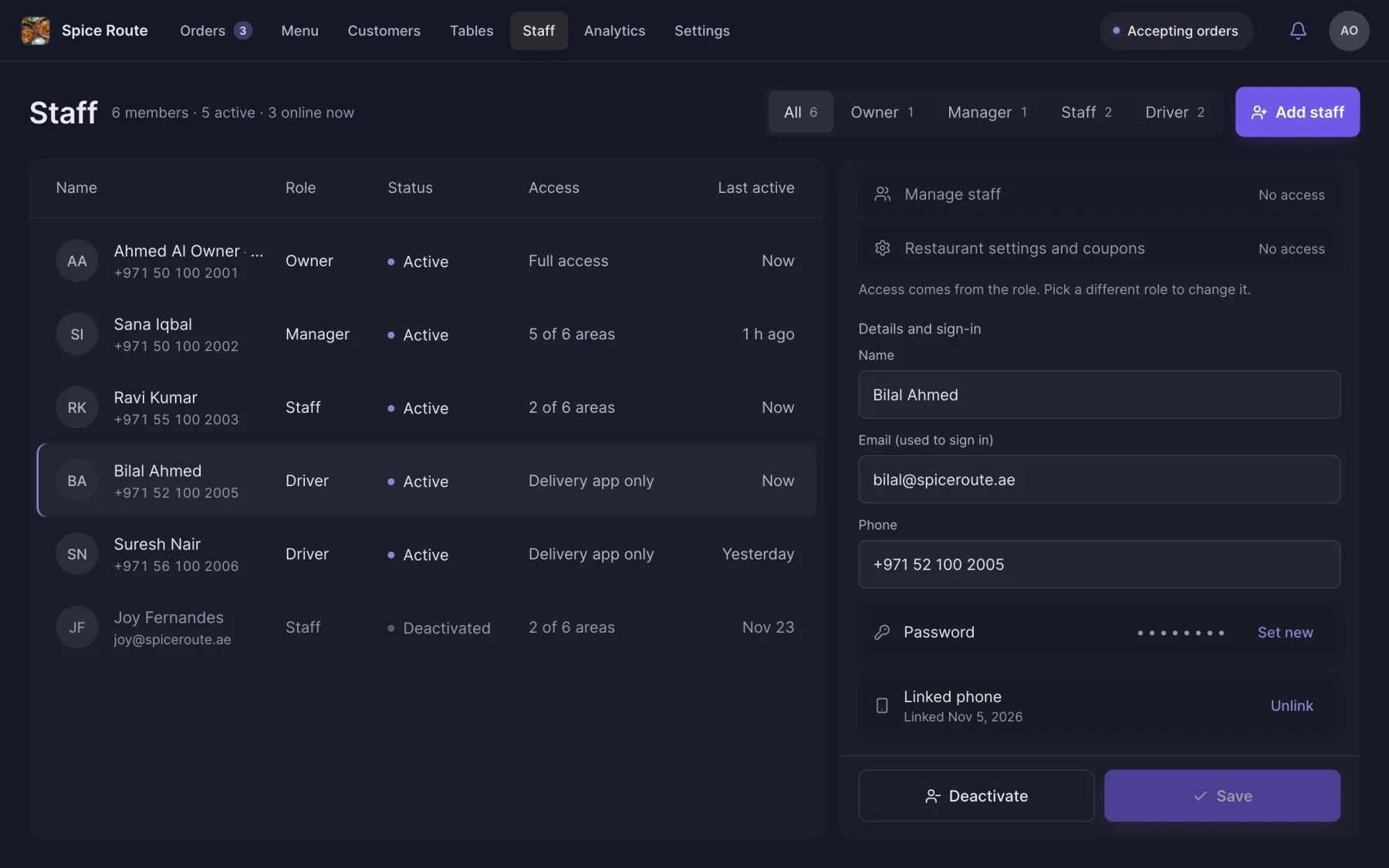
If they change their email, they sign in with the new one from now on.
#Set a new password
Passwords are never sent by email. When someone forgets theirs, an owner or manager sets a new one.
- Go to Staff and click the person.
- Next to Password, click Set new.
- Type a new password of at least 8 characters.
- Click Save. The new password works straight away.
- Tell them the new password in person.
Note
Owners can only have their password set by another owner. If you are the only owner and you are locked out, contact Ramzi support. See Contact support.
#Filter the list
Use the chips at the top (All, Owner, Manager, Staff, Driver) to show one role at a time.
#What staff see
Staff can open the Staff page but see Owner and managers only, with a note to ask their manager if their details need changing.