
Choose a template
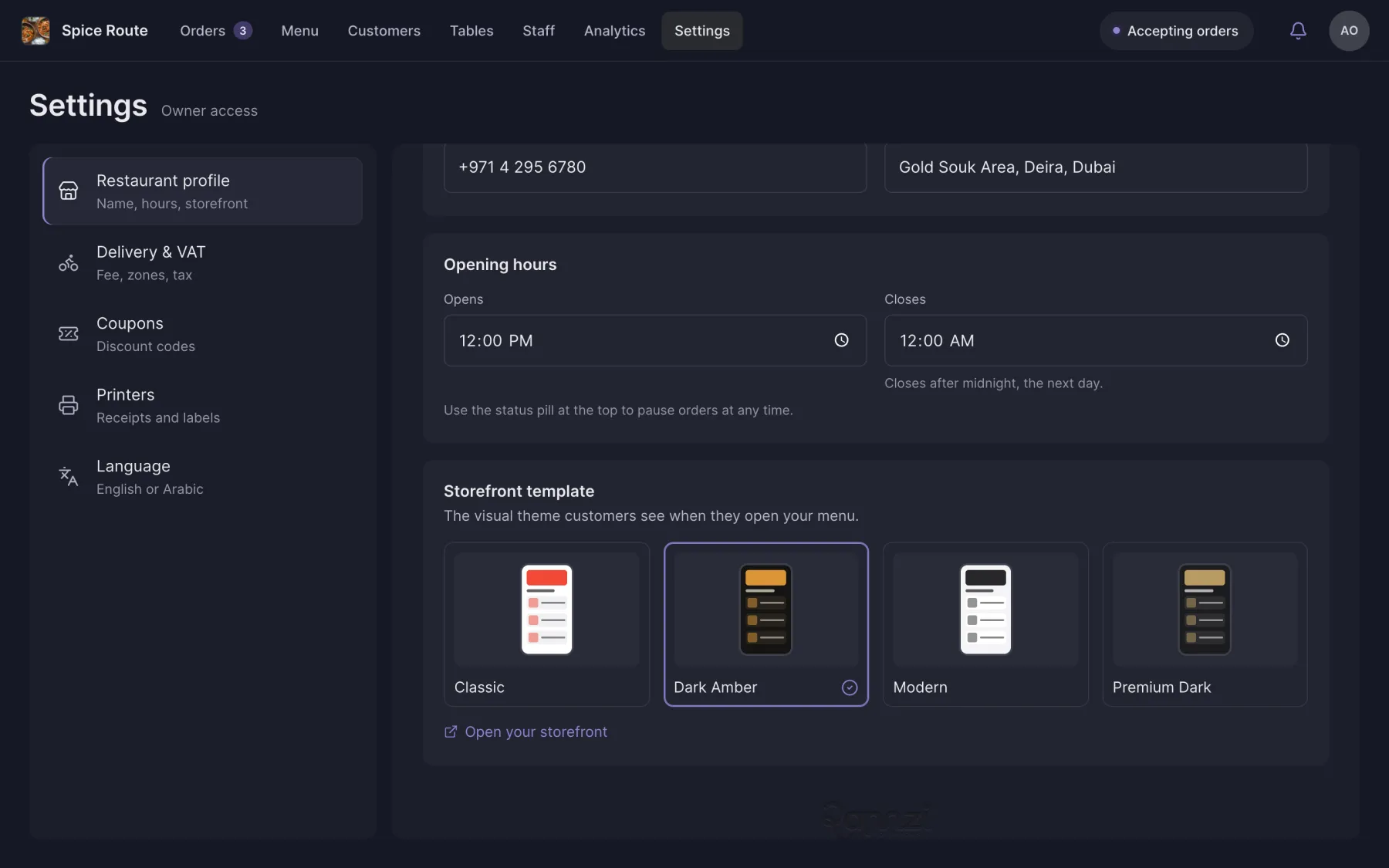
Pick one of four looks for your storefront. Your menu stays the same; only the colours and style change.
Who can do thisOwner
A template sets the colours and style of your storefront. Every template shows the same menu, photos and features, so you can switch at any time without losing anything.
| Template | Look |
|---|---|
| Classic | White background with a bright red accent. Clean and familiar. |
| Dark Amber | Warm dark background with amber highlights. Great with food photos. |
| Modern | Light grey and black, minimal. |
| Premium Dark | Dark grey with a gold accent, for a fine-dining feel. |
#Change your template
- Go to Settings → Restaurant profile.
- Scroll to Storefront template.
- Click the template you want. It gets a tick.
- Click Save changes in the bar at the bottom of the page.
- Click Open your storefront to see the new look.
Tip
Pick the template that suits your photos. Dark templates make colourful dishes stand out. Light templates suit cafés and bakeries.