
Pause orders
Stop new orders for a while, for example when the kitchen is overloaded, then turn them back on with one click.
Who can do thisOwner
The pill at the top of the dashboard shows whether your storefront is taking orders:
- Accepting orders (with a purple dot): customers can order.
- Not accepting orders (grey dot): customers can browse your menu, but can't place orders.
#Stop taking orders
- Click Accepting orders at the top of the screen.
- Read the message: Close the store? Customers won't be able to place orders until you re-open.
- Click Close store.
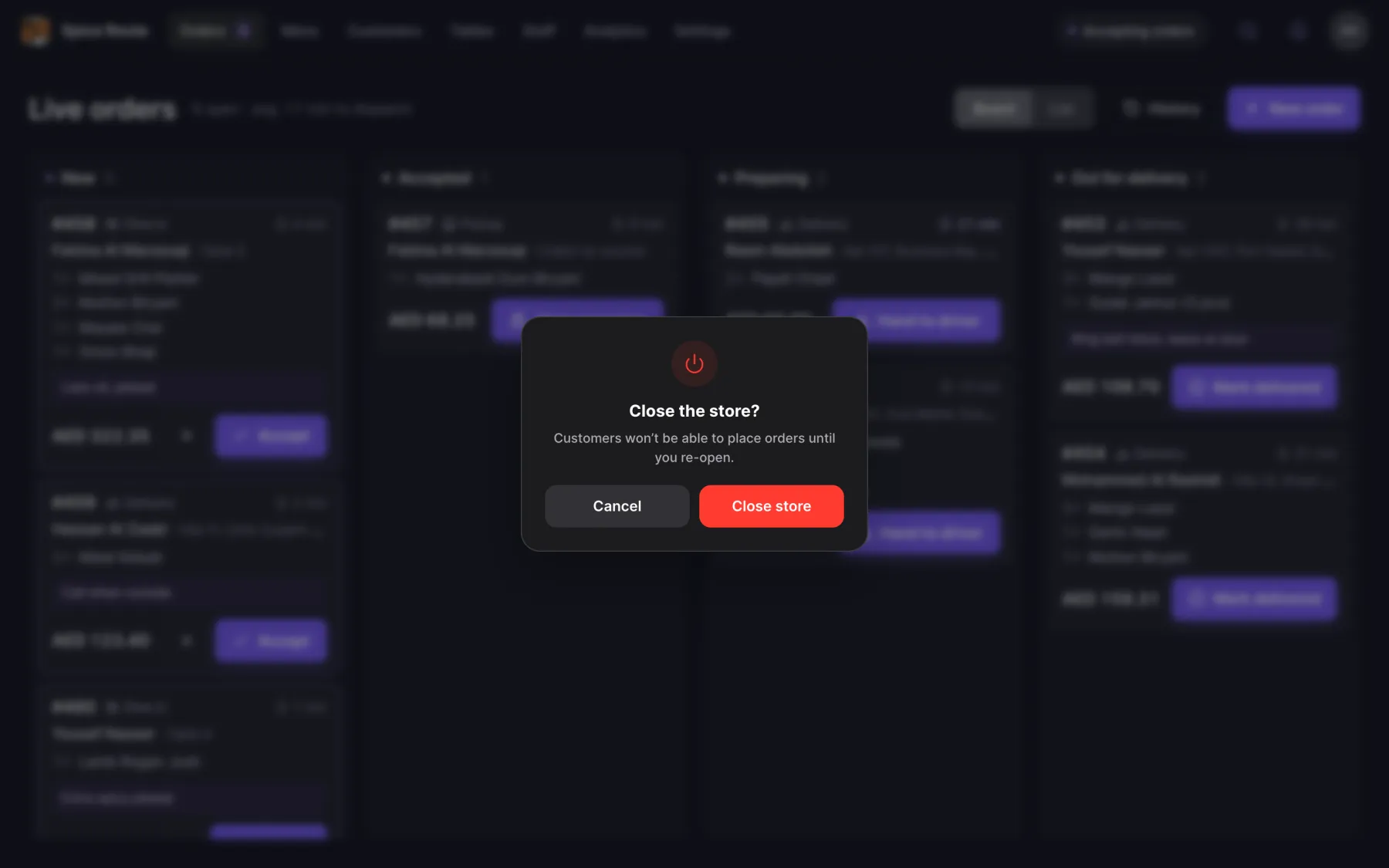
Orders already on the board stay there. Finish them as usual.
#Start taking orders again
Click Not accepting orders, then confirm. Your storefront takes orders again straight away.
#What customers see while you're paused
Your storefront shows a banner: We are currently closed — browse the menu and order when we reopen. Customers can still browse and fill their cart, but they can't place the order.
#Pausing and opening hours
These are two separate controls:
- Opening hours close your storefront automatically outside your hours, every day. See Opening hours.
- Pausing closes it right now, until you turn it back on. It doesn't turn back on by itself.
Remember to turn orders back on after a pause. If the pill still says Not accepting orders the next morning, customers can't order.
Only the owner can pause and restart orders.