
How customers order
Walk through your storefront the way a customer does, from choosing delivery to tracking the order live.
Knowing what your customers see helps you answer their questions. Try it yourself with a test order. See Your first-day checklist.
#1. Choose how to order
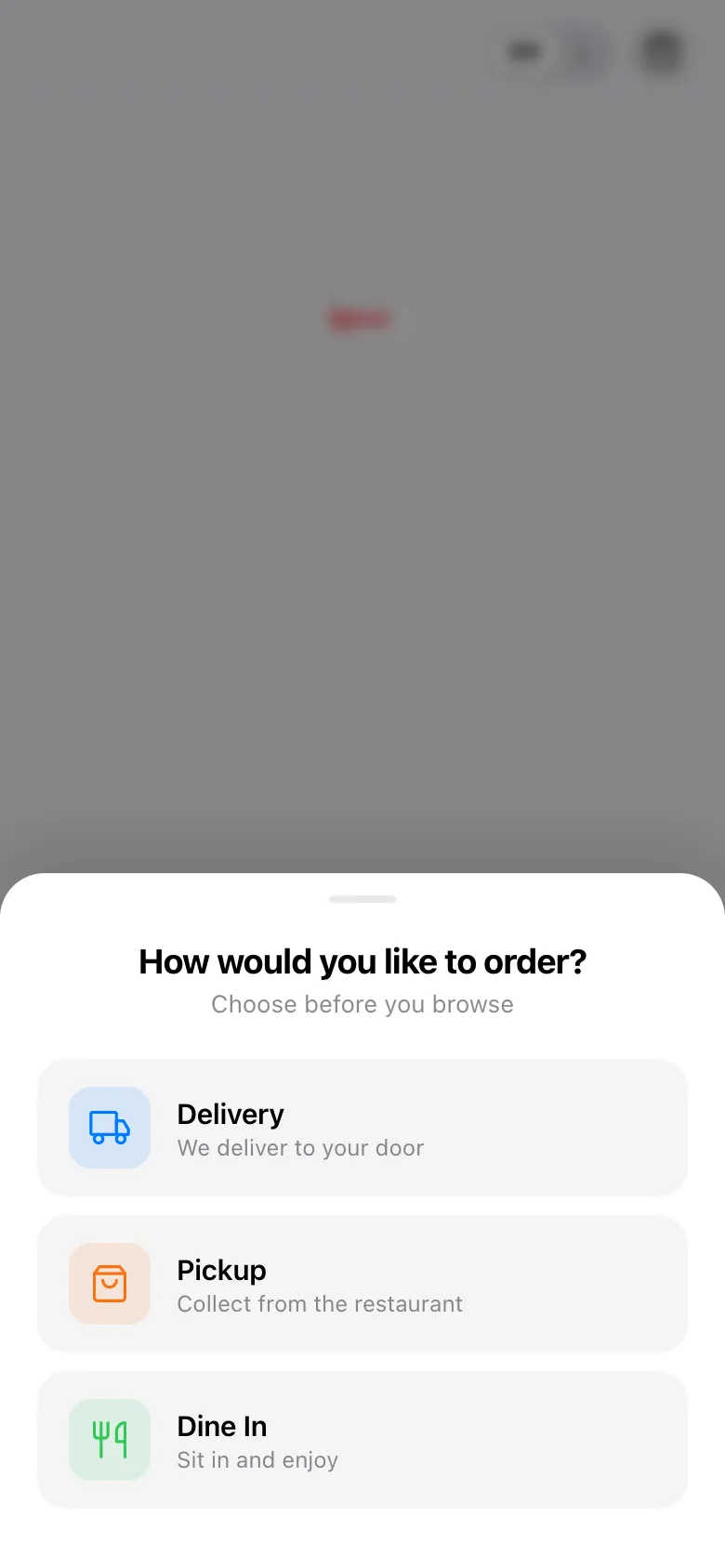
When customers open your storefront, they first choose Delivery, Pickup or Dine In. They can change it later from the button at the top of the page.
Customers who scan a table's QR code skip this step: dine-in is chosen and the table number is filled in. See Table QR codes.
#2. Browse and add items
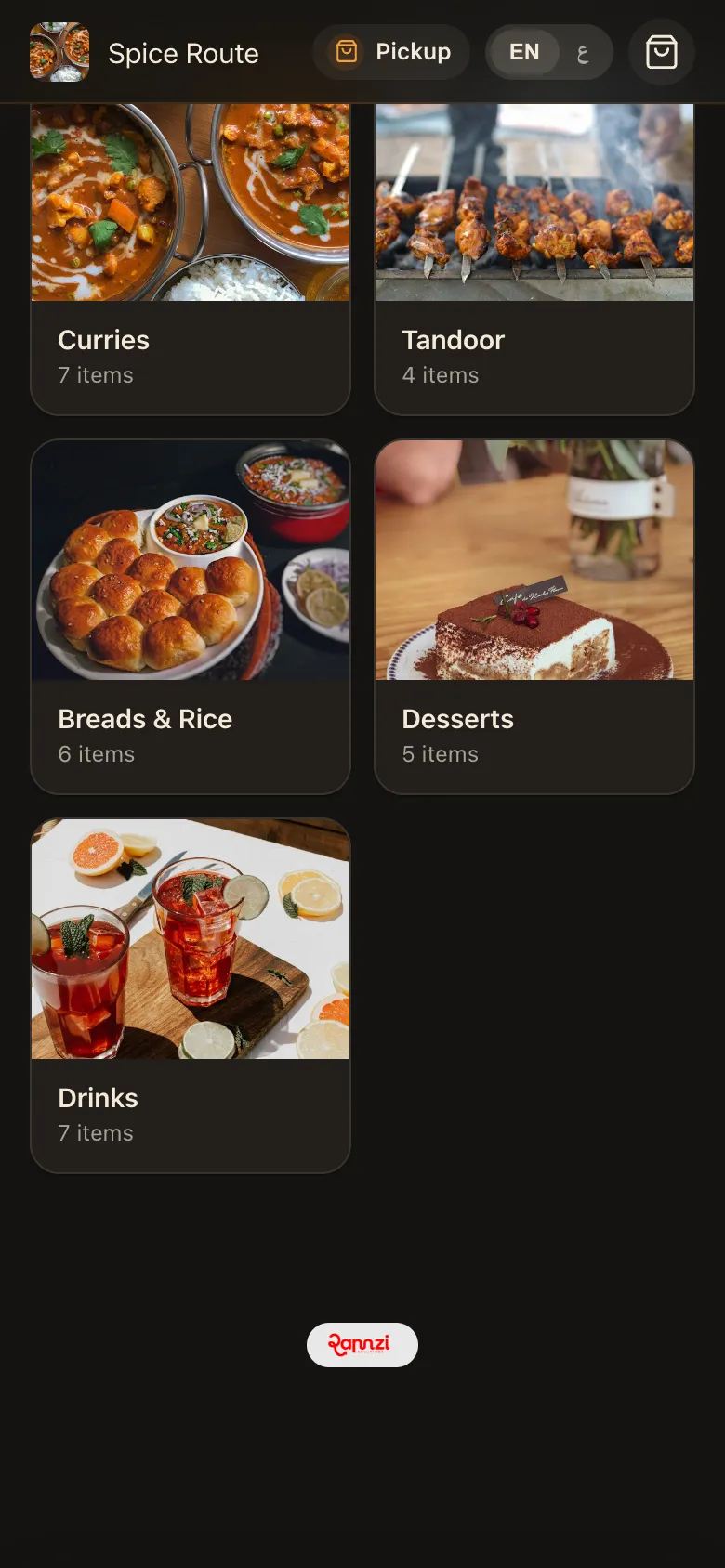
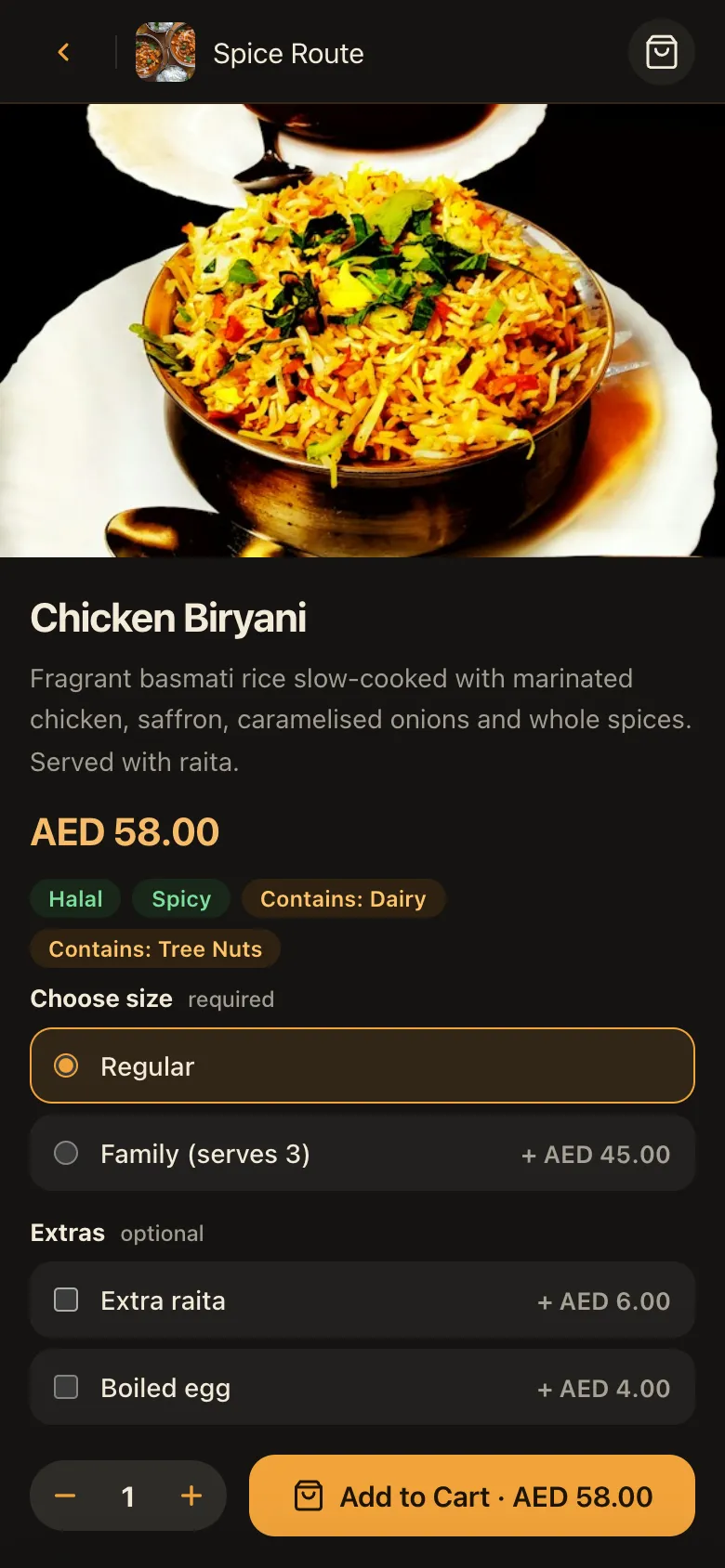
Customers scroll your menu, switch categories with the tabs, or search. They tap + to add an item, or tap the item to open its page with photo, description, tags, sizes and extras.
#3. Review the cart
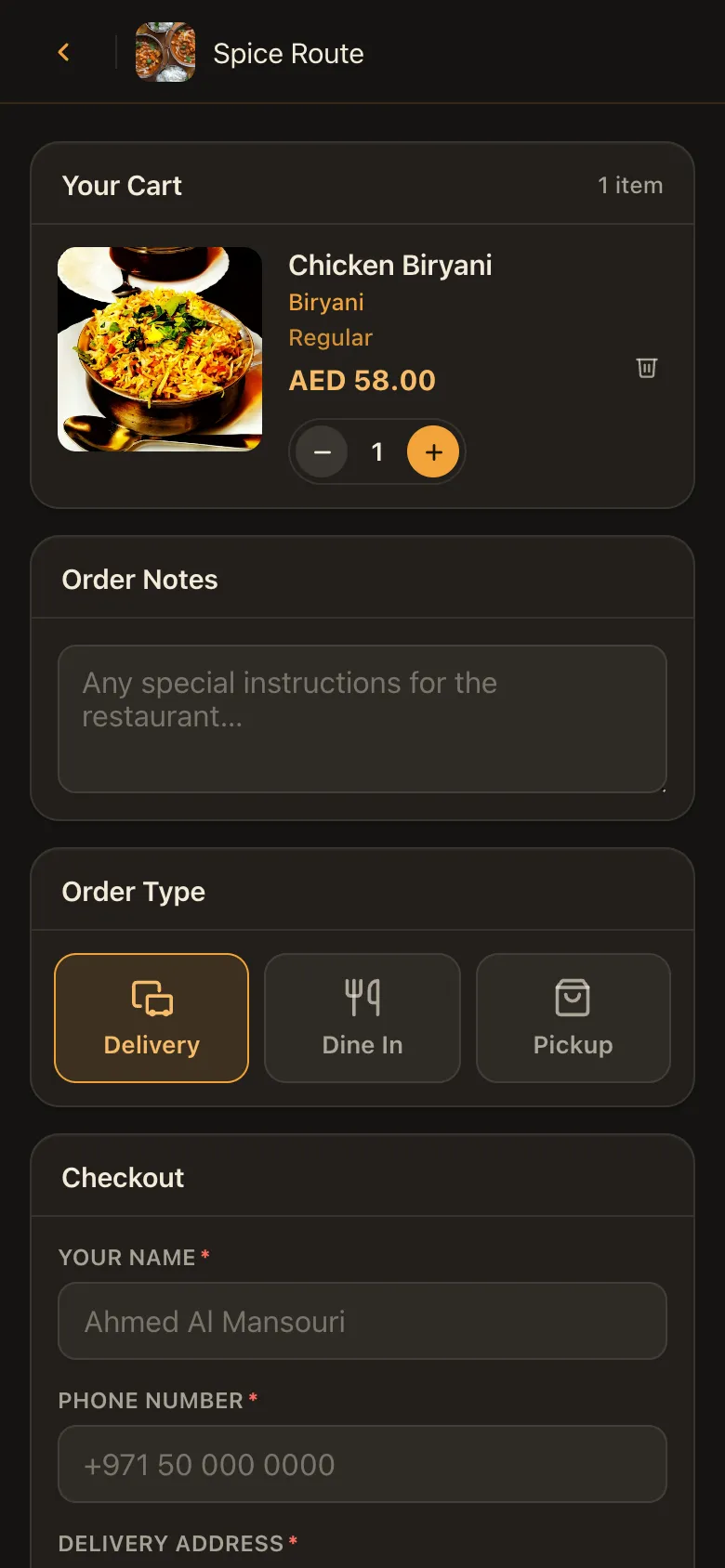
In the cart, customers can change quantities, remove items, add an order note for the kitchen, and switch the order type.
#4. Check out
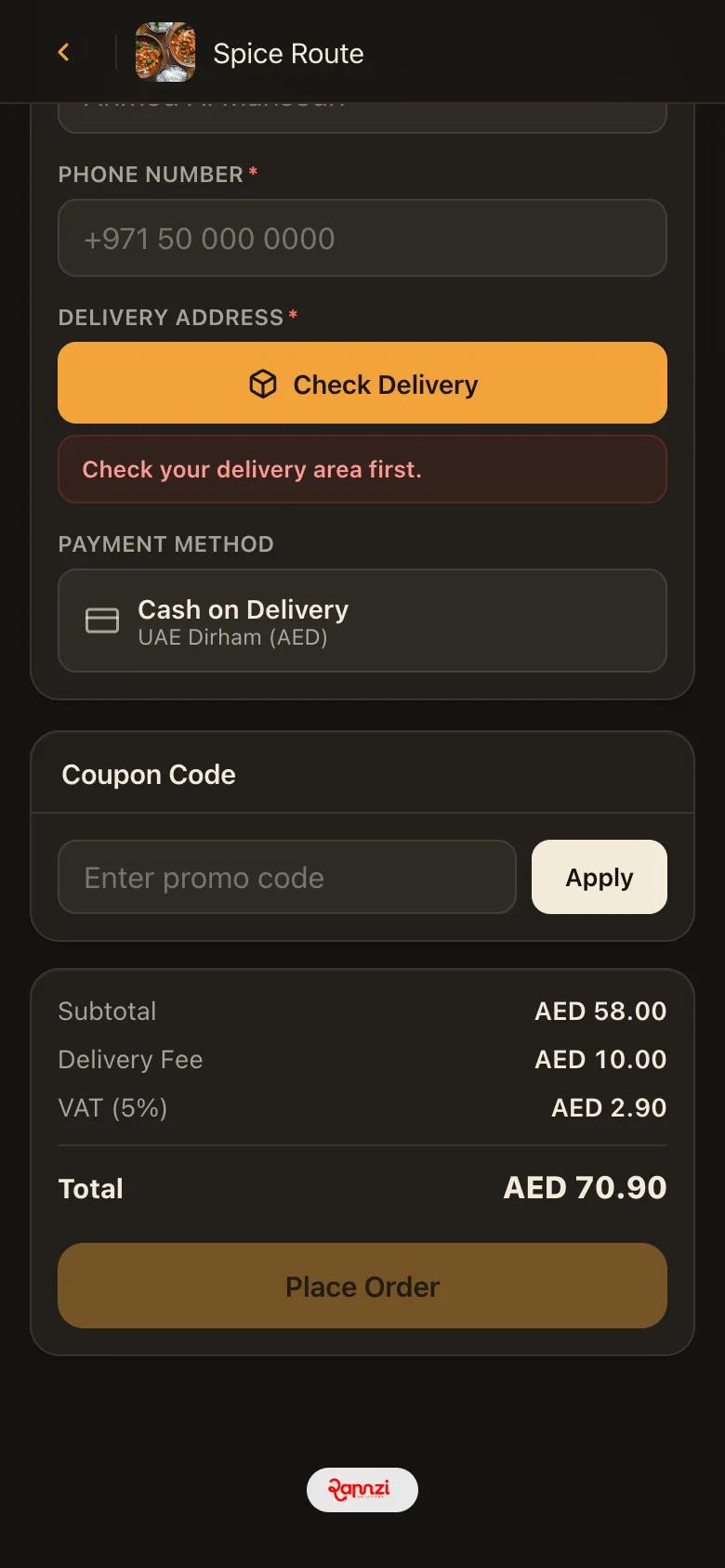
Customers fill in:
| Field | When |
|---|---|
| Your name and Phone number | Always required. |
| Delivery address | Delivery only. They tap Check Delivery, search for their address or use their location, and Ramzi checks it is inside your delivery zones. See Delivery zones. |
| Table number | Dine-in only. Filled in for them if they scanned a table QR code. |
| Coupon code | Optional. They type a code and tap Apply. See Coupons. |
The summary shows the Subtotal, Discount, Delivery fee, VAT and Total. Payment is Cash on Delivery for delivery orders and cash on collection for pickup and dine-in.
They tap Place Order, and the order reaches your board.
#5. Track the order
After ordering, customers see a live tracking page that updates by itself as you move the order along: Order Received → Accepted → Preparing → Ready for Pickup / On the way → Picked Up / Delivered. It shows an estimated time, the total, and a Share link button.
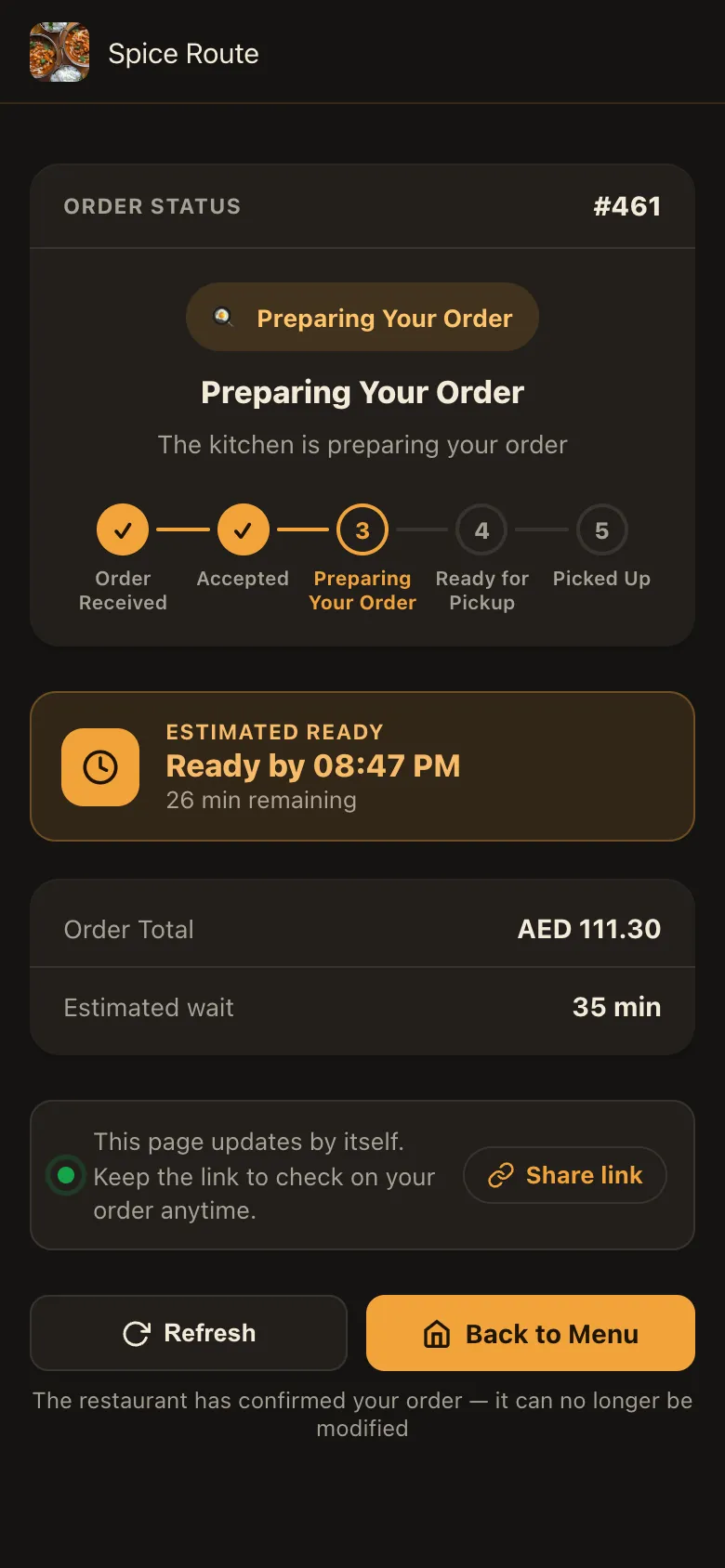
While the order is still New, customers can cancel it from this page. Once you accept it, they can't.
#When customers can't order
Customers can browse but not order when:
- You are outside your opening hours. See Opening hours.
- You have paused orders. See Pause orders.
- Their address is outside your delivery zones (delivery only).
- An item is sold out. They can see it but not add it.