
Open and edit an order
See every detail of an order, and change its items, quantities or note before it goes out.
Who can do thisOwner
Click any order card or row to open it. Anyone who can see orders can open them. Only the owner can edit them.
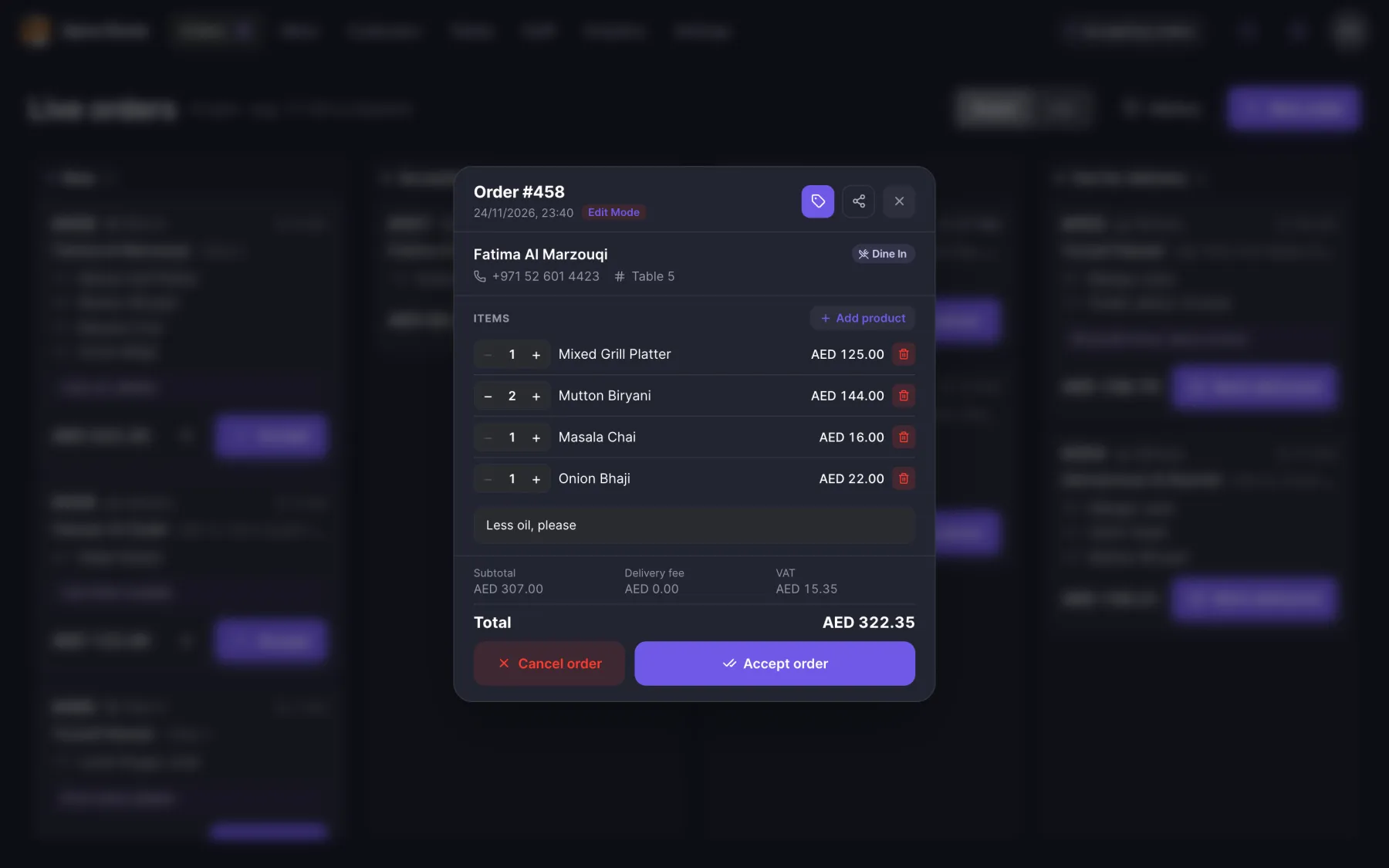
#What you see in an open order
- Order number and the date and time it was placed.
- Customer name, phone number, and their address or table number.
- Order type (Delivery, Pickup or Dine In).
- Items with quantities and prices, including any size or extras.
- The customer's note.
- Totals: discount (with the coupon code used), subtotal, delivery fee, VAT and the total.
- Label buttons (top right): print a bag label or share it to your label printer's app. See Label printer.
- The next-step button, the same one as on the card.
#Edit an order
The owner sees an Edit Mode tag next to the date. You can edit an order while it is New, Accepted or Preparing.
- Open the order.
- Change a quantity with − and +, or remove a line with the red bin button.
- To add something, click Add product, search the menu, and click the item. If the same item is already in the order without a size or extras, its quantity goes up by one.
- Change the order note if needed.
- Click Save changes. The totals, VAT and delivery fee are recalculated.
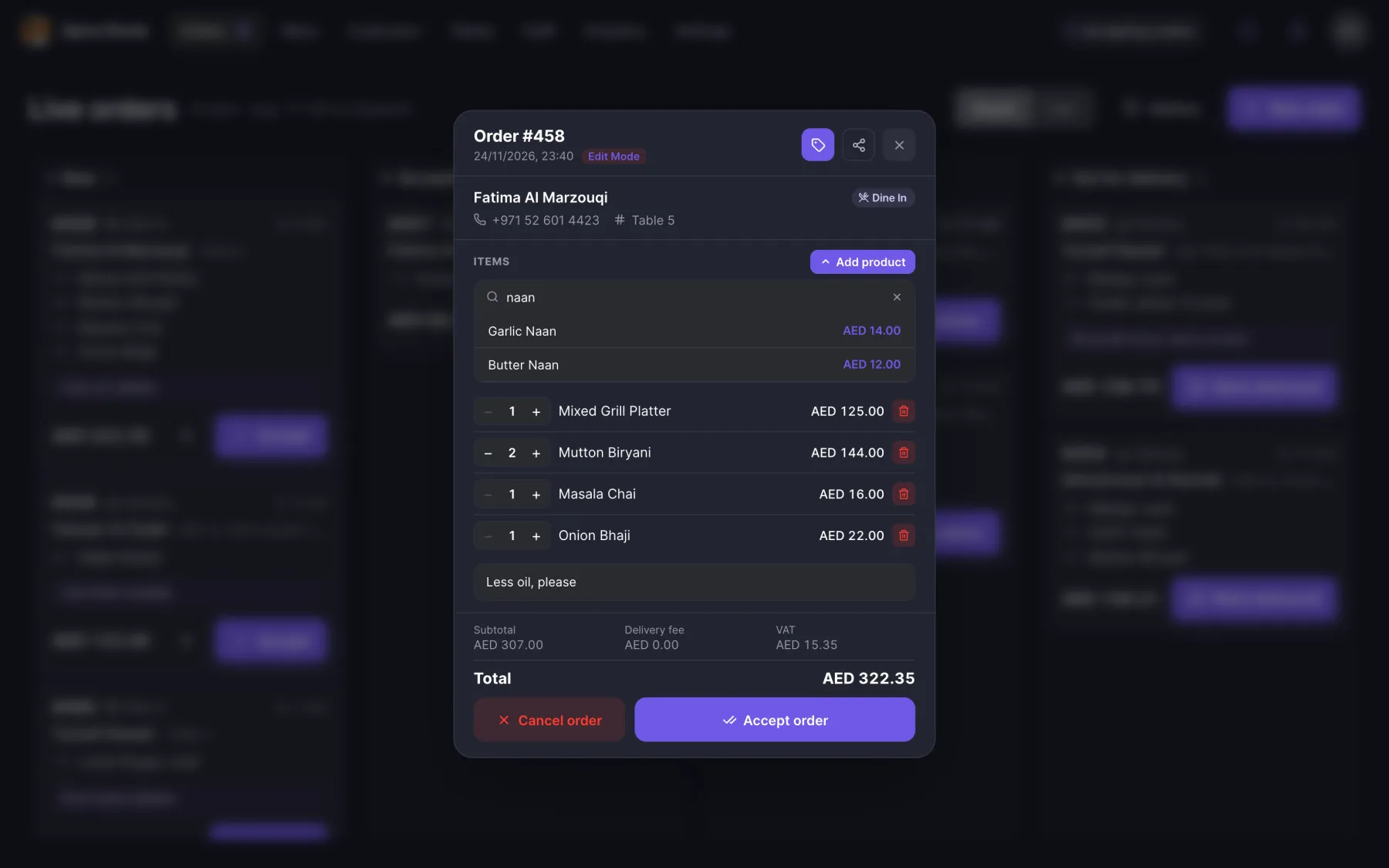
Lines that were already in the order keep their original price, size and extras. New lines are priced at today's menu price.
When you have unsaved changes, the buttons at the bottom change to Cancel (close without saving) and Save changes. Save or cancel your changes before you move the order to its next stage. The total shown in purple is the new total after your changes.
#When an order can't be edited
Once an order is Out for delivery, Delivered or Cancelled, it is read-only. An open order that is out for delivery shows: Order is out for delivery and cannot be modified.
An order must keep at least one item. To turn down a new order completely, decline it instead. See Decline or cancel an order.