
Export orders
Download your orders as a CSV or Excel file, filtered by date, status and order value.
Who can do thisOwnerManagerStaff
- On the Orders screen, click History.
- Click Export (top right of the table).
- Choose a Period: Today, Last 7 days, Last 30 days or Custom range. For a custom range, pick the From and To dates.
- Under Filters, choose an Order status: All, New, In progress, Delivered or Cancelled.
- Optionally, enter a Min. order value to include only orders above an amount.
- Choose a Download format: CSV or Excel.
- Click Download. The file saves to your device.
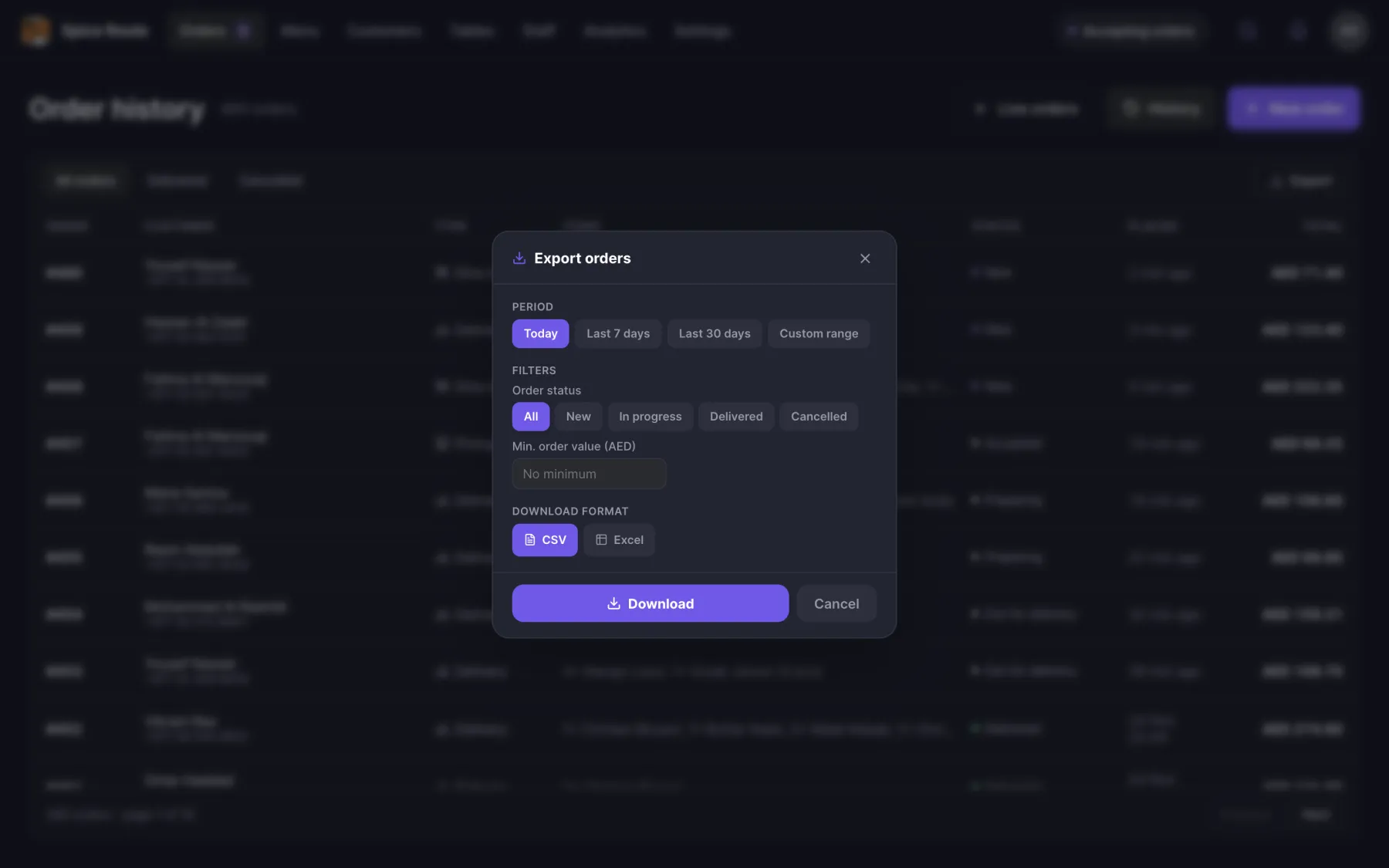
#The options
| Option | What it does |
|---|---|
| Period | Which days to include. Last 7 days means today and the six days before it. |
| Order status | In progress covers orders that are accepted, preparing or out for delivery. |
| Min. order value | Leaves out orders below this total, in AED. Leave it empty for no minimum. |
| Download format | CSV opens in any spreadsheet app. Excel opens directly in Microsoft Excel. |
Tip
Send your accountant a monthly file: choose Custom range, pick the first and last day of the month, set status to Delivered, and download as Excel.
For totals by day, hour, item and category instead of a list of orders, use the export on the Analytics page. See Export analytics.