
Decline or cancel an order
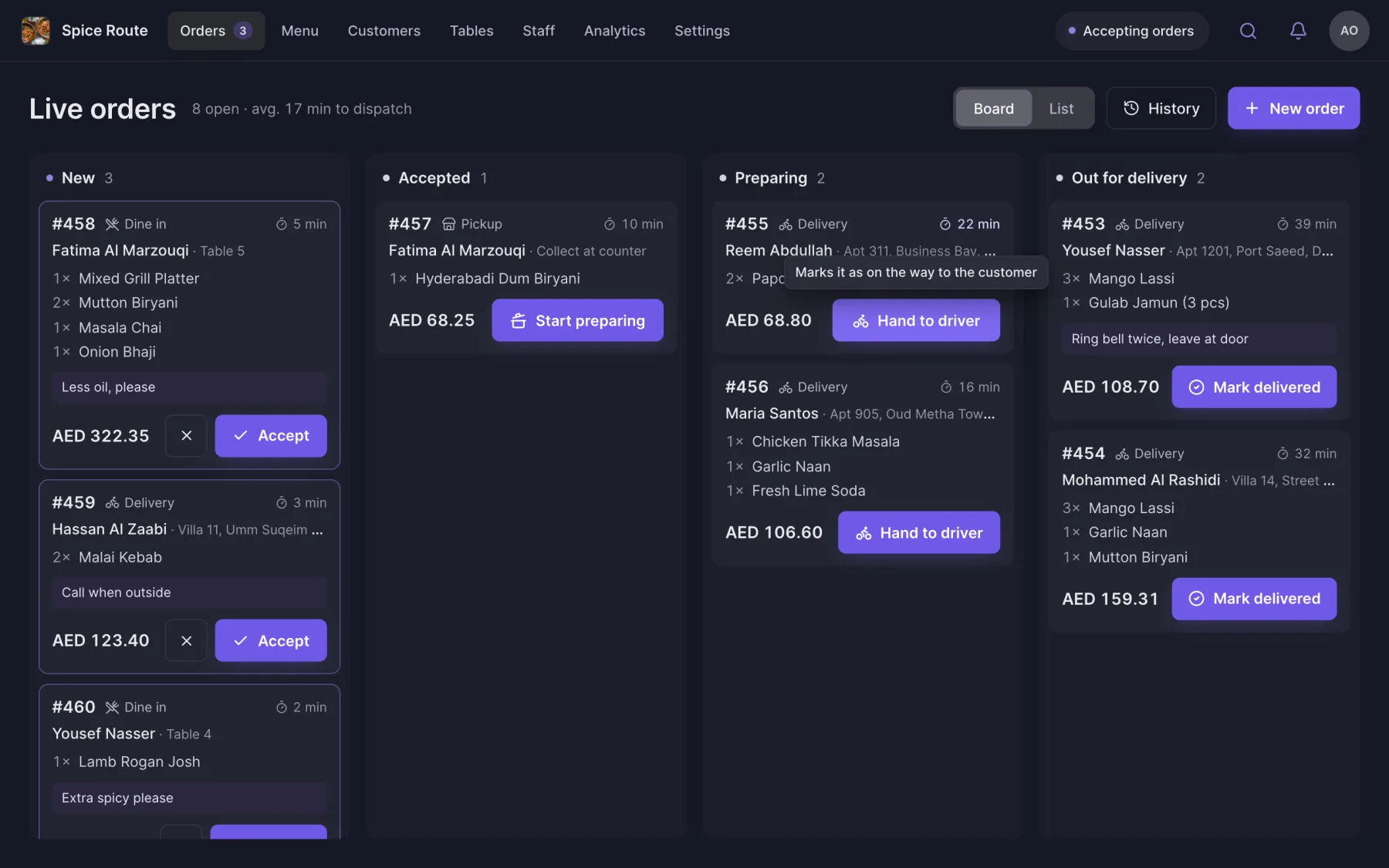
Turn down a new order you can't make. Declining cancels the order and tells the customer straight away.
Who can do thisOwnerManagerStaff
You can turn down an order while it is still New, before anyone accepts it. Declining cancels the order. It can't be undone.
Use it when you can't make the order, for example when an item has run out, the kitchen is too busy, or the address is too far.
#From the order card
- On the order's card in the New column, click the ✕ button next to Accept.
- Read the message: The order will be cancelled and the customer will see it as declined. This can't be undone.
- Click Decline order, or Cancel to go back.
#From the open order
- Click the new order to open it.
- Click Cancel order at the bottom.
- Confirm with Cancel order, or click Keep order to go back.
#What happens next
- The customer's tracking page shows that the order was declined.
- The order moves to History with the status Cancelled.
- It doesn't count towards your revenue in Analytics, but it does appear in the Cancelled number. See Key numbers.
If you declined because an item ran out, mark it sold out so nobody else can order it. See Mark items sold out.
#After you accept an order
Once an order is accepted, the dashboard no longer shows a decline or cancel button. Plan for that:
- Check the order before you accept it. Make sure you have everything and can deliver to the address.
- Something missing? The owner can change the items before the order goes out. See Open and edit an order. Call the customer first. Their number is in the order.
#Customers can cancel too
A customer can cancel their own order from their tracking page while it is still New. Once you accept it, their tracking page says: The restaurant has confirmed your order — it can no longer be modified.