
The Menu screen
A tour of the Menu screen, where you manage categories, items, prices and photos. Changes show on your storefront straight away.
Who can do thisOwnerManagerStaff
The Menu screen has three columns. Everything you change here appears on your storefront straight away.
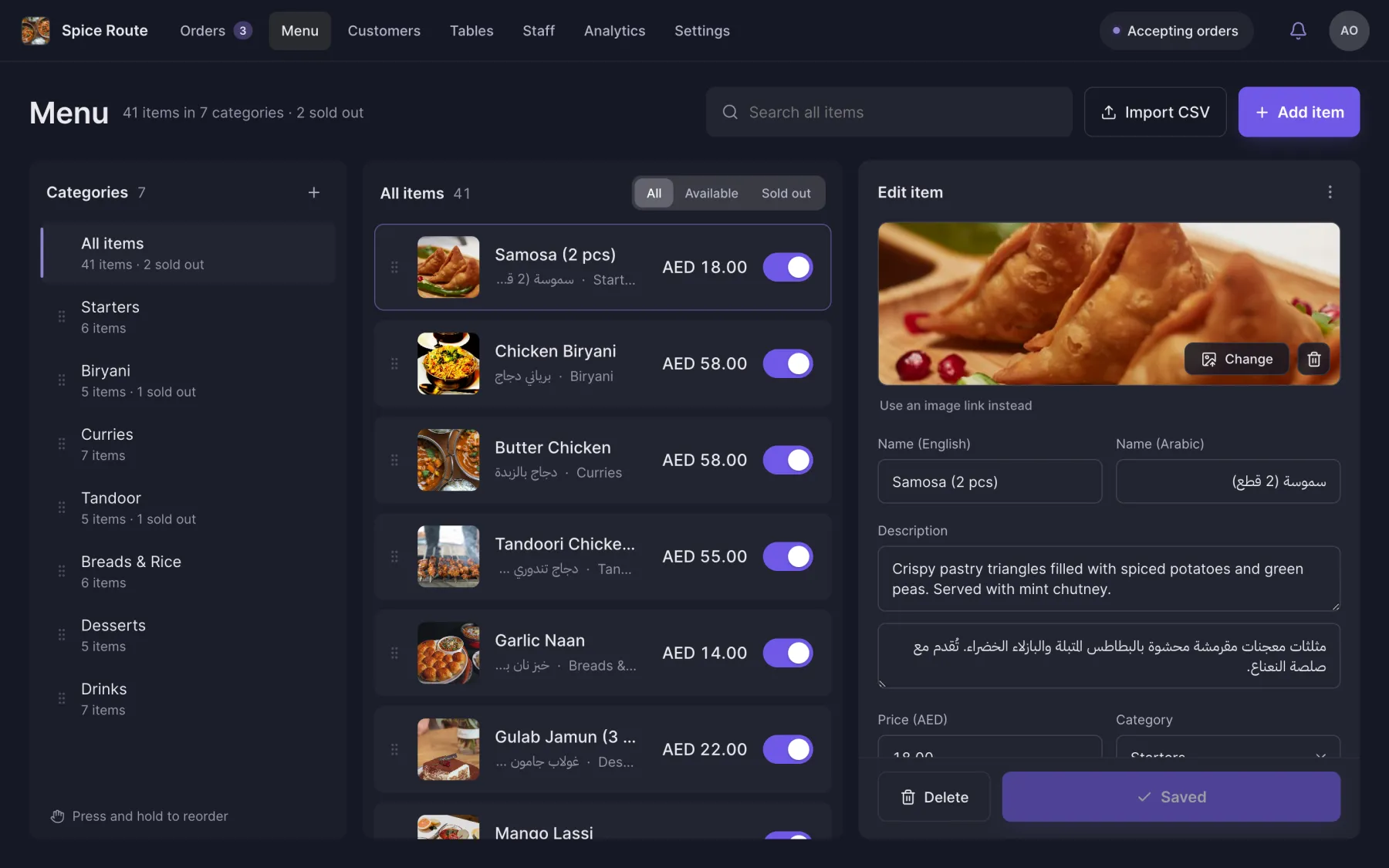
| Column | What it does |
|---|---|
| Categories (left) | Your menu sections, such as Starters or Drinks, in the order customers see them. All items shows everything. Each row shows how many items it has and how many are sold out. |
| Items (middle) | The items in the category you picked, with photo, English and Arabic name, price and an availability switch. |
| Editor (right) | Edit the selected item, or fill in a new one. |
On smaller screens the editor opens over the list when you pick an item.
#The header
- The summary under Menu shows how many items and categories you have, and how many items are sold out.
- Search all items finds an item by English or Arabic name. See Search and filter items.
- Import CSV adds many items or categories at once from a spreadsheet. See Import your menu from a CSV file.
- Add item opens a blank item in the editor. See Add and edit items.
#The availability switch
Every item has a switch on the right of its row. Purple means the item is available. Grey means it is sold out: customers still see it on your storefront, but can't order it. See Mark items sold out.
#Reorder categories and items
The order here is the order on your storefront.
- Categories: press and hold a category for a moment, then drag it up or down. On a computer you can also drag it with the mouse.
- Items: drag an item by its handle (the six dots on the left). Reordering items works when the All filter is on and the search box is empty.
Note
Staff can switch items between available and sold out, but can't add, edit, reorder or delete anything. See Who can edit the menu.