
Install the dashboard and turn on alerts
Add the dashboard to your tablet's home screen like an app, and make sure the new-order sound can play.
The dashboard runs in a web browser, so there is nothing to download from an app store. You can still add it to your home screen, and it then opens full screen like an app.
#Add it to your home screen
#iPad or iPhone (Safari)
- Open portal.ramzi.ae in Safari and sign in.
- Tap the Share button (the square with an arrow pointing up).
- Tap Add to Home Screen, then Add.
- Open Ramzi from the new icon on your home screen.
#Android tablet or phone (Chrome)
- Open portal.ramzi.ae in Chrome and sign in.
- Tap the ⋮ menu in the top right corner.
- Tap Install app or Add to Home screen.
- Open Ramzi from the new icon.
#Computer (Chrome or Edge)
Click the install icon at the right end of the address bar, or open the browser menu and choose Install Ramzi.
#Turn on the new-order sound
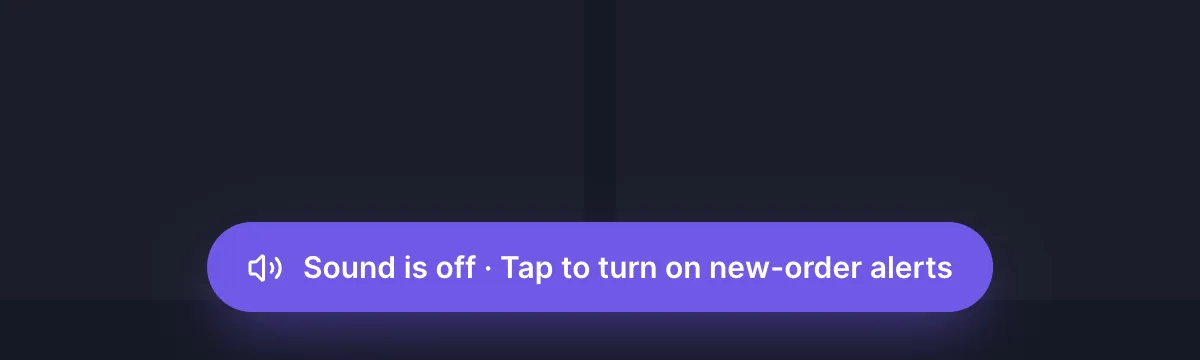
Browsers keep sound off until someone touches the page. Each time the dashboard opens or reloads, you may see a purple button at the bottom of the screen:
Sound is off · Tap to turn on new-order alerts
Tap it once. You hear a short chirp, and from then on new orders play a repeating alert until someone accepts or declines them.
Check the bell in the top bar. If it is crossed out, alerts are muted on this device. Click it to turn them back on. See New-order sound and notifications.
#Tips for the counter tablet
- Keep the screen on. In the tablet's display settings, set auto-lock or sleep to Never while the restaurant is open. Plug it in.
- Turn the volume up and keep the tablet out of silent mode.
- Leave the Orders page open. The alert loop runs on whichever dashboard page is open, but the Orders page shows new orders the moment they arrive.
- Allow notifications when the browser asks. You then also get a system notification when a new order arrives while the dashboard is in the background.