
Import your menu from a CSV file
Add dozens of categories or items at once from a spreadsheet, with a preview that catches mistakes before anything is saved.
Who can do thisOwnerManager
If your menu is already in a spreadsheet, you can import it instead of typing each item. Import categories first, then items, because each item has to name a category that already exists.
#1. Prepare your file
Make a spreadsheet in Excel, Google Sheets or Numbers, with the column names in the first row exactly as below. Then save or download it as CSV.
#Categories file
| Column | Required | Example |
|---|---|---|
name_en |
Yes | Grills |
name_ar |
No | مشويات |
image_url |
No | A link to a photo |
sort_order |
No | 3 (lower numbers come first) |
#Items file
| Column | Required | Example |
|---|---|---|
name_en |
Yes | Chicken 65 |
name_ar |
Yes | دجاج 65 |
description_en |
No | Crispy fried chicken with curry leaves |
description_ar |
No | دجاج مقلي مقرمش بأوراق الكاري |
price |
Yes | 38 (numbers only, no "AED") |
category_name |
Yes | Starters (must match a category's English name) |
image_url |
No | A link to a photo |
is_available |
No | yes or no (empty means yes) |
name_en,name_ar,description_en,description_ar,price,category_name,image_url,is_available
Chicken 65,دجاج 65,Crispy fried chicken with curry leaves,دجاج مقلي مقرمش,38,Starters,,yes
Lamb Biryani,برياني لحم ضأن,Slow-cooked lamb with basmati rice,,74,Biryani,,yes
In Excel, use File → Save As → CSV UTF-8. Plain "CSV" can turn Arabic text into question marks.
#2. Upload it
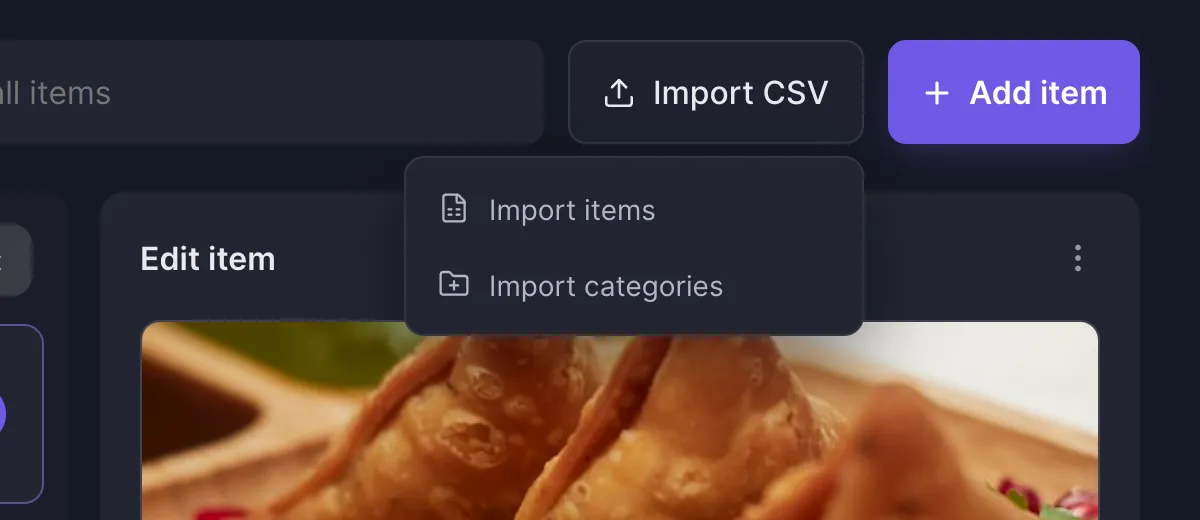
- On the Menu screen, click Import CSV.
- Choose Import categories or Import items.
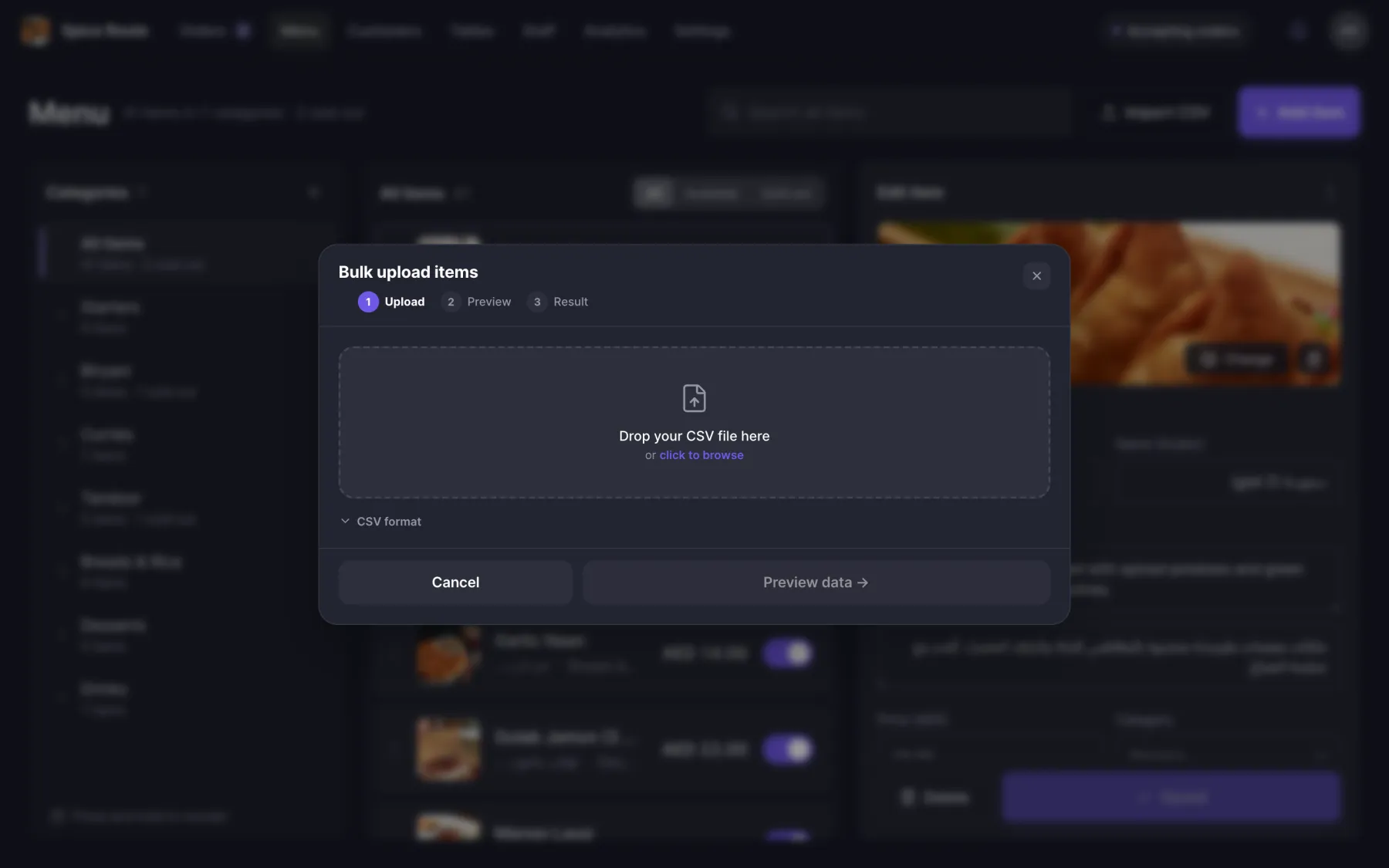
- Drag your file into the box, or click click to browse and pick it. Click CSV format to see the expected columns at any time.
- Click Preview data.
#3. Check the preview
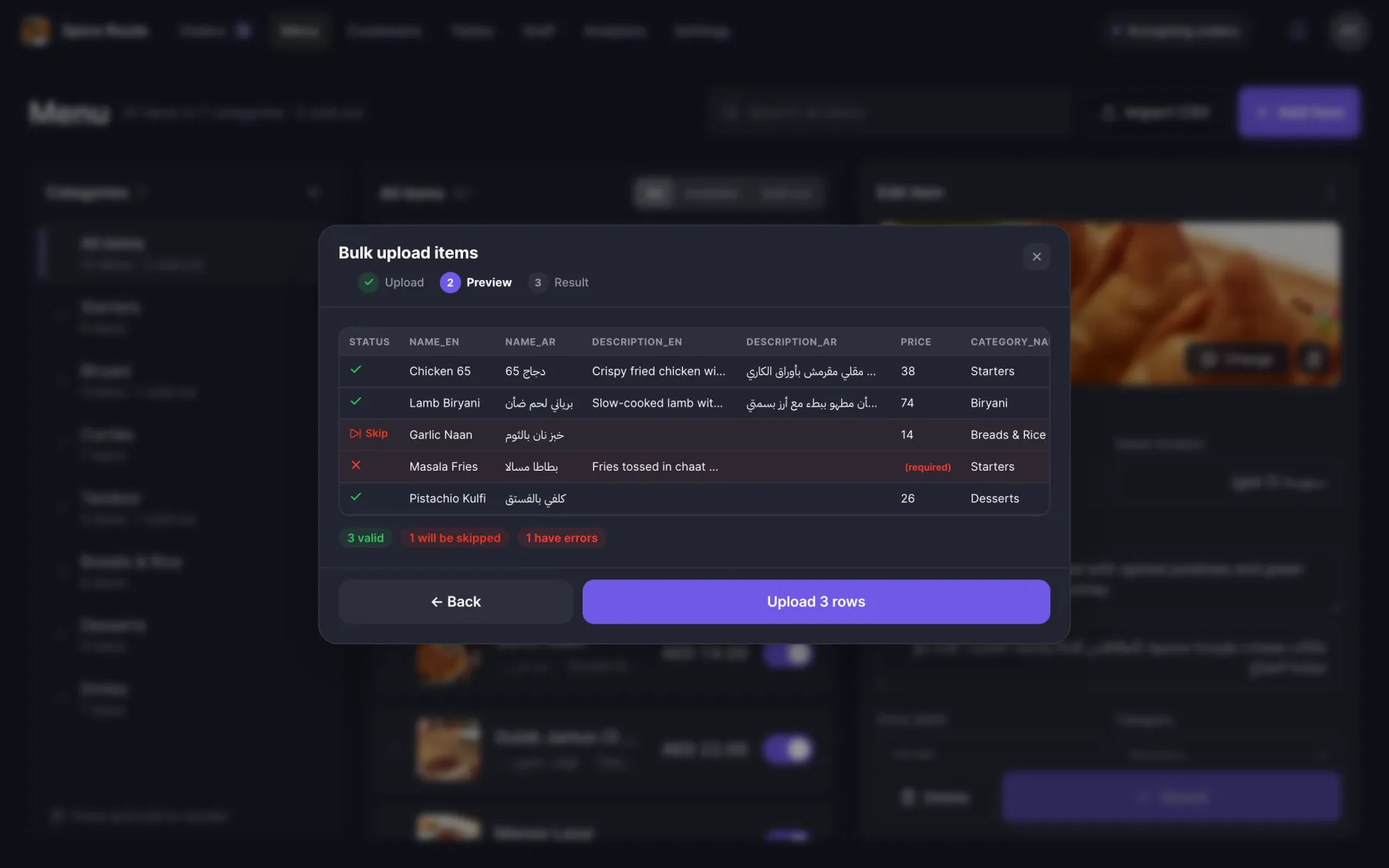
Every row gets a status before anything is saved:
| Status | Meaning |
|---|---|
| ✓ (valid) | The row will be added. |
| Skip | An item or category with the same English name already exists, or the name appears twice in your file. It won't be added again. |
| ✕ (error) | Something required is missing or wrong, for example an empty price. The cell shows what's wrong. The row won't be added. |
The counts under the table, such as 3 valid · 1 will be skipped · 1 have errors, tell you what will happen.
#4. Upload
Click Upload [n] rows. Only the valid rows are added. The result step shows what was created, with details for any row that failed. Click Upload another to import another file, or Done.
To fix rows with errors, correct them in your spreadsheet and import the file again. The rows already added are skipped automatically, because their names now exist.
#After importing
- Add photos to items that didn't have an
image_url. See Add and edit items. - Add sizes, extras and tags, which can't be imported. See Sizes and extras.
- Check the order of categories and items, and drag them into place. See The Menu screen.
Prefer not to do it yourself? Send us your menu and we set it up for you.