
Restaurant details
Your restaurant's name in English and Arabic, phone number and address, as customers and drivers see them.
Who can do thisOwner
Settings is where the owner sets up the restaurant. It has five sections on the left: Restaurant profile, Delivery & VAT, Coupons, Printers and Language.
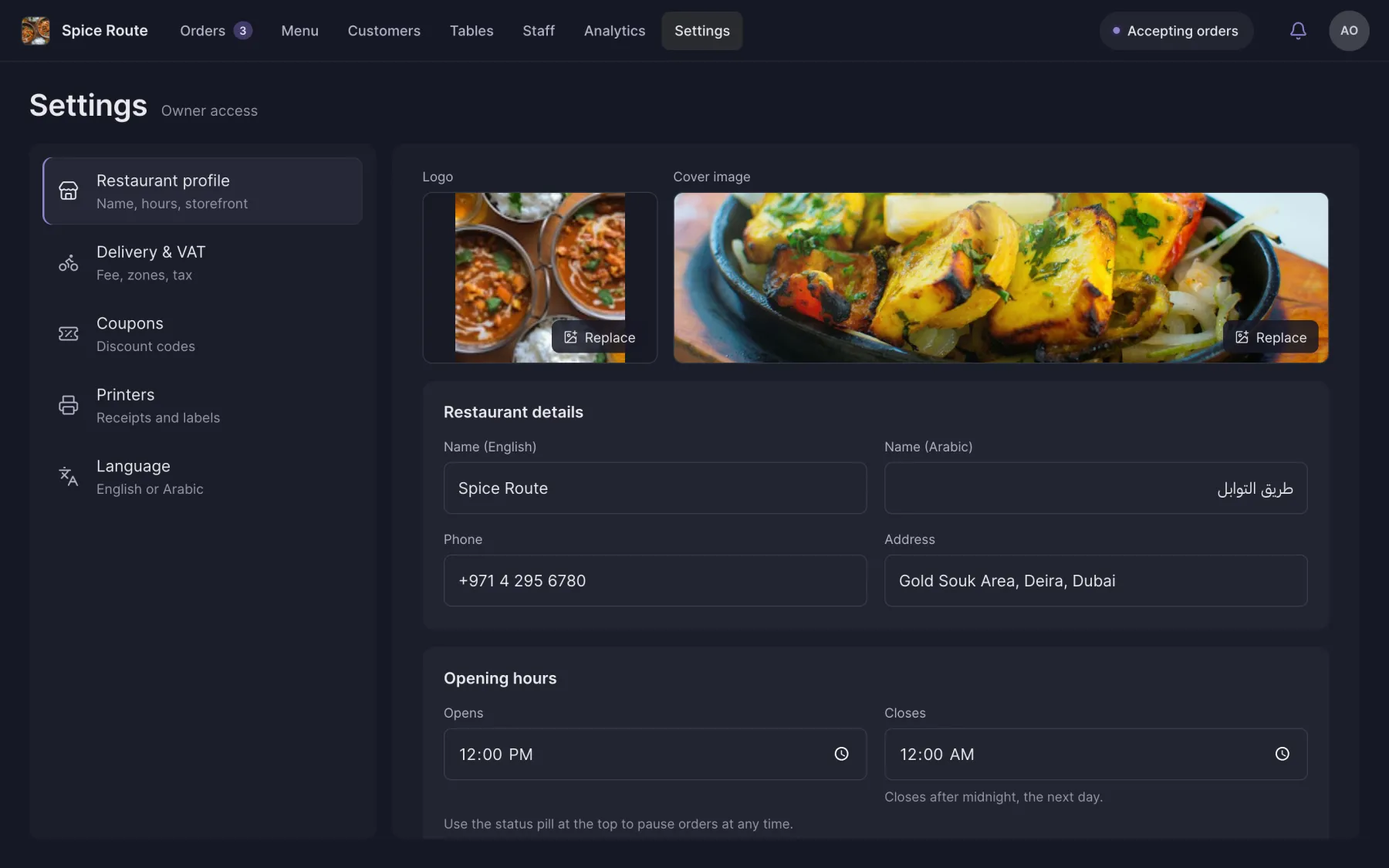
#Change your details
- Go to Settings → Restaurant profile.
- Under Restaurant details, change any of these:
- Name (English): required.
- Name (Arabic): shown to customers using Arabic.
- Phone: your restaurant's contact number.
- Address: for example Shop 4, Al Barsha 1, Dubai.
- A bar appears at the bottom: Unsaved changes. Click Save changes, or Discard to undo.
- You see Changes saved.
#Where your details appear
| Detail | Where it shows |
|---|---|
| Name (English and Arabic) | Your storefront header, the dashboard, and printed bills. |
| Phone | Printed bills. |
| Address | The rider app, as the Pickup address drivers navigate to, and printed bills. |
Tip
Write the address the way a driver would search for it, with the building or shop number and area. Drivers tap it to open their maps app.
#The rest of this page
- Logo and Cover image: see Logo and cover image.
- Opening hours: see Opening hours.
- Storefront template: see Choose a template.
#Who can open Settings
Only the owner sees every section. Managers and staff only see Printers and Language, because those are saved on each device. If they need something else changed, they ask the owner.