
Add a staff member
Give each person on your team their own sign-in, so you can see who did what and control what they can access.
Who can do thisOwnerManager
Give everyone their own account instead of sharing one. You can see when each person was last active, and remove one person's access without changing everyone's password.
- Go to Staff and click Add staff (top right).
- Enter their Name, for example Omar Saleh.
- Enter their Email (used to sign in). Each email can only be used once.
- Optionally, enter their Phone, for example +971 50 123 4567.
- Choose a Role: Owner, Manager, Staff or Driver. The line under the buttons explains what the role does. See Roles.
- Enter a Password of at least 8 characters.
- Click Add staff.
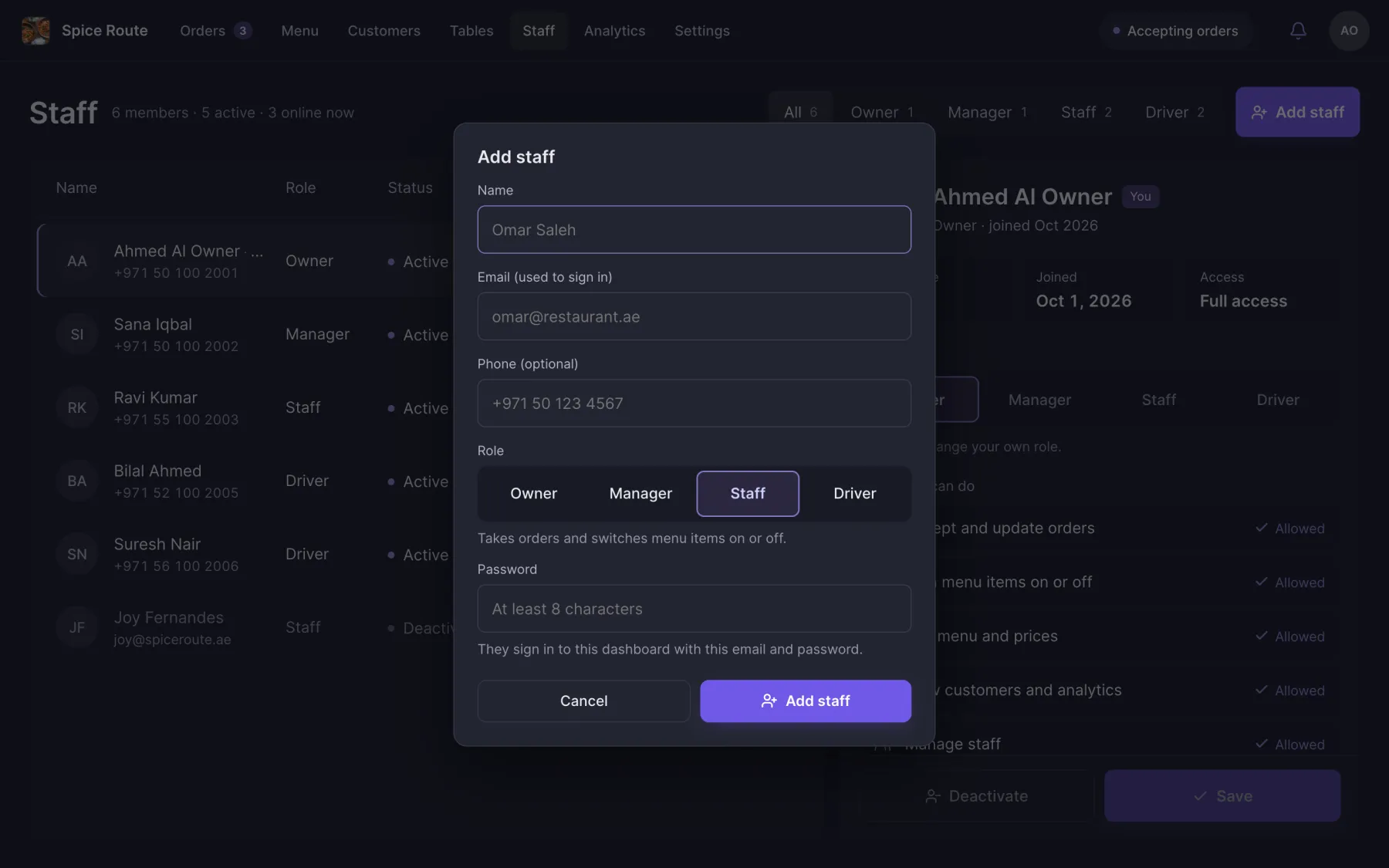
They can sign in straight away with that email and password. Drivers sign in to the rider app, everyone else to the dashboard.
Tip
Give the password to the person face to face, not in a group chat. You can set a new one for them at any time. See Edit details and passwords.
#If something goes wrong
| Message | What to do |
|---|---|
| Someone already uses that email. | Each email can only have one Ramzi account. Use a different email. |
| Passwords need at least 8 characters. | Choose a longer password. |
| Enter a valid phone number, like +971 50 123 4567. | Check the phone number, or leave it empty. |
| Add their name. / Enter a valid email | Fill in the missing field. |