
The Orders screen
Where every order lands. Learn the Board and List layouts, what each card shows, and how to open order history.
Who can do thisOwnerManagerStaff
The Orders screen opens when you sign in. It shows every open order, from the moment a customer places it until it is delivered or completed. It refreshes by itself every few seconds, so you never need to reload the page.
#The header
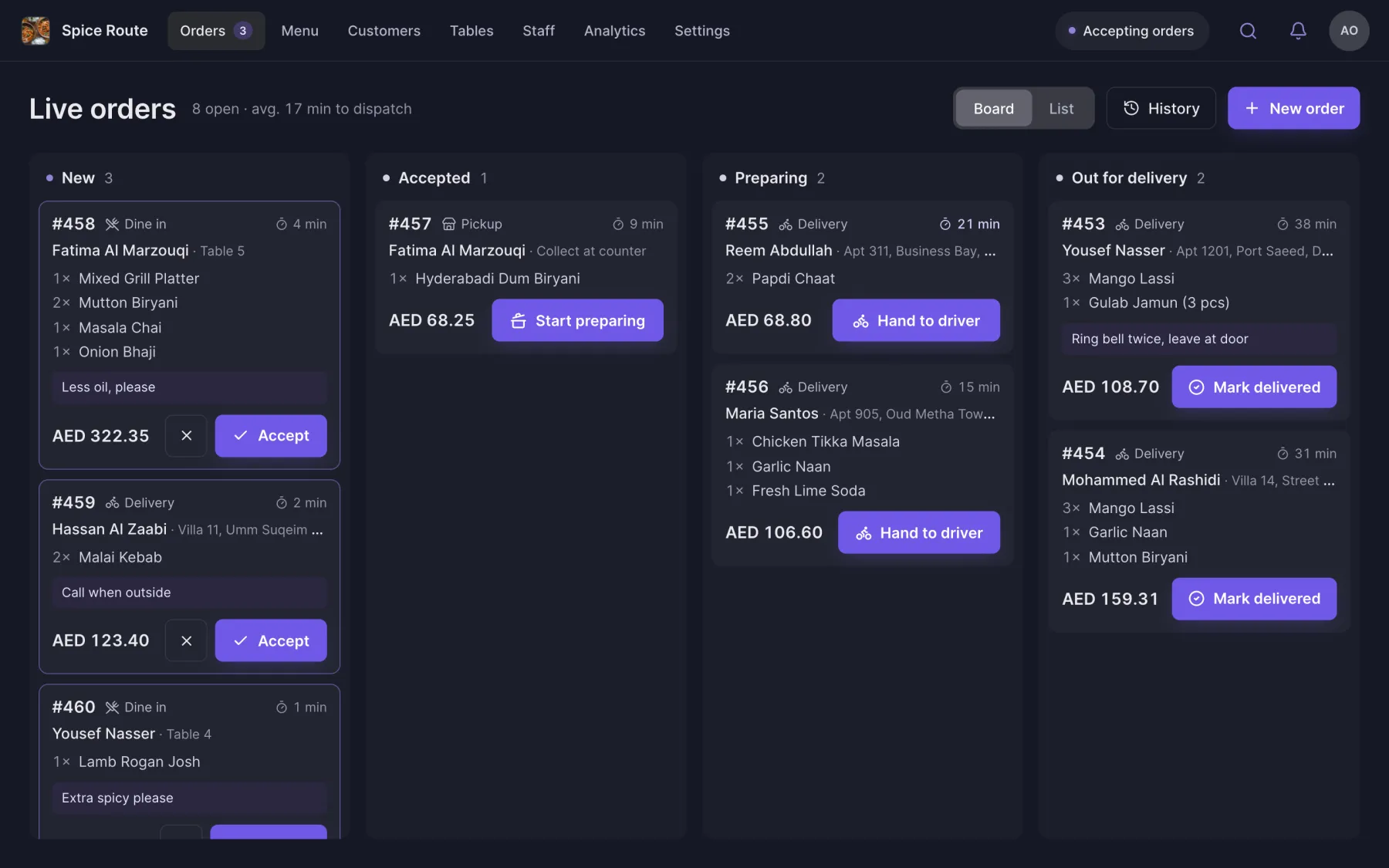
- Live orders shows how many orders are open, and the average time from order to dispatch for orders that are out right now.
- Board / List switches the layout. Your choice is remembered on this device.
- History shows every past order. See Order history below.
- New order opens your storefront in a new tab so you can place an order for a customer. See Place an order for a customer.
#Board layout
Board shows one column for each stage of an order:
| Column | What it means |
|---|---|
| New | The customer has just placed the order. Nobody has accepted it yet, and the alert keeps sounding until someone does. |
| Accepted | You have accepted the order, but the kitchen hasn't started it yet. |
| Preparing | The kitchen is making it. |
| Out for delivery | A delivery order is on its way, a pickup order is ready at the counter, or a dine-in order has been served. |
Inside each column, the oldest order is at the top. That is the one to do next.
#What an order card shows
- Order number and type (Delivery, Pickup or Dine in).
- Timer: how long ago the order was placed. Orders waiting longer than 20 minutes in the kitchen stages get a highlighted timer.
- Customer name and either their address, Collect at counter or Table number.
- Items with quantities, and any size or extras the customer chose.
- The customer's note, such as "Extra spicy please", in a shaded box.
- Total and the next-step button, for example Accept, Start preparing or Hand to driver.
Click anywhere on a card (not on a button) to open the full order. See Open and edit an order.
#List layout
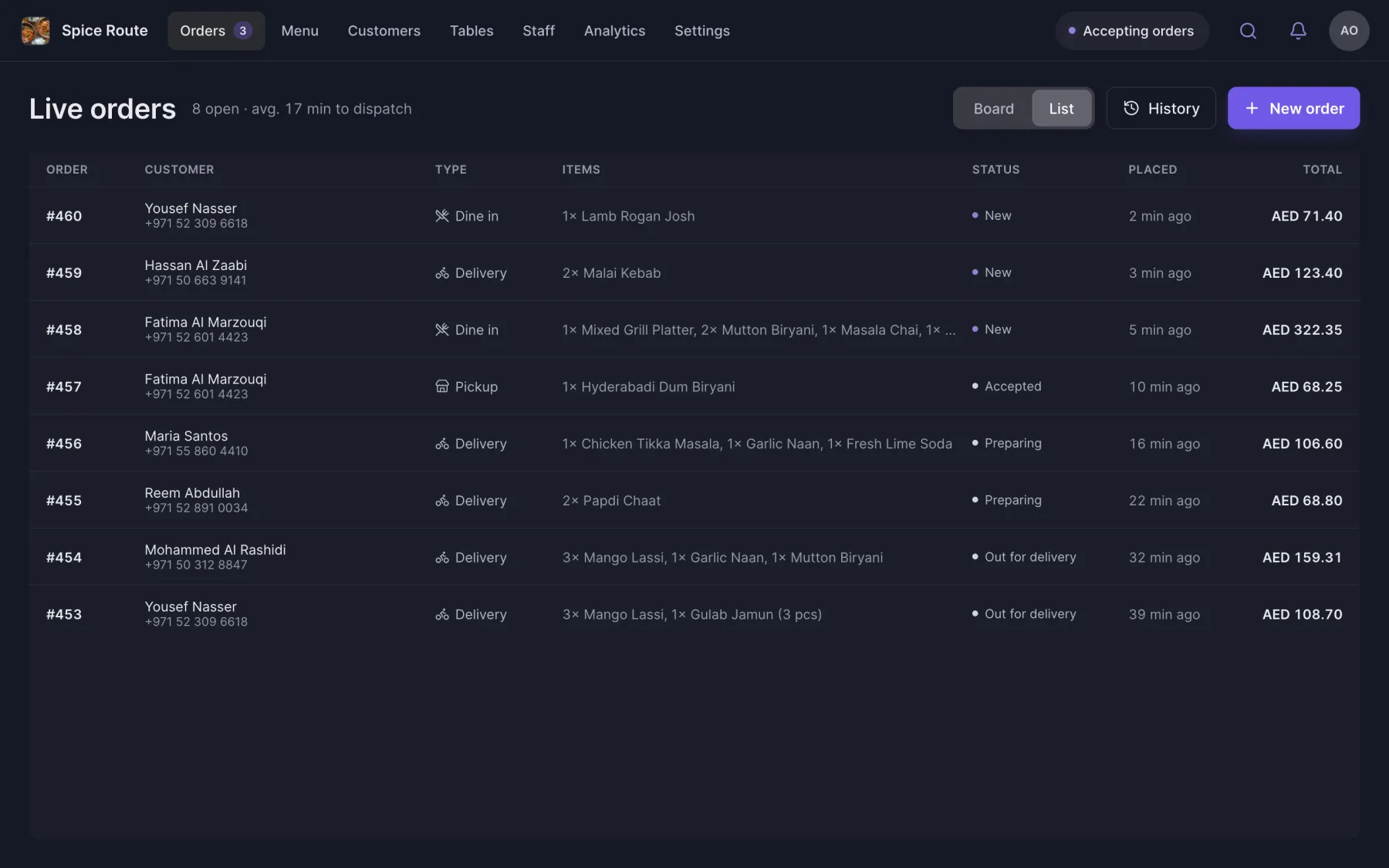
List shows the same open orders as a table, which is easier to scan when you have many. Use the chips at the top to filter, and click a row to open the order.
#Order history
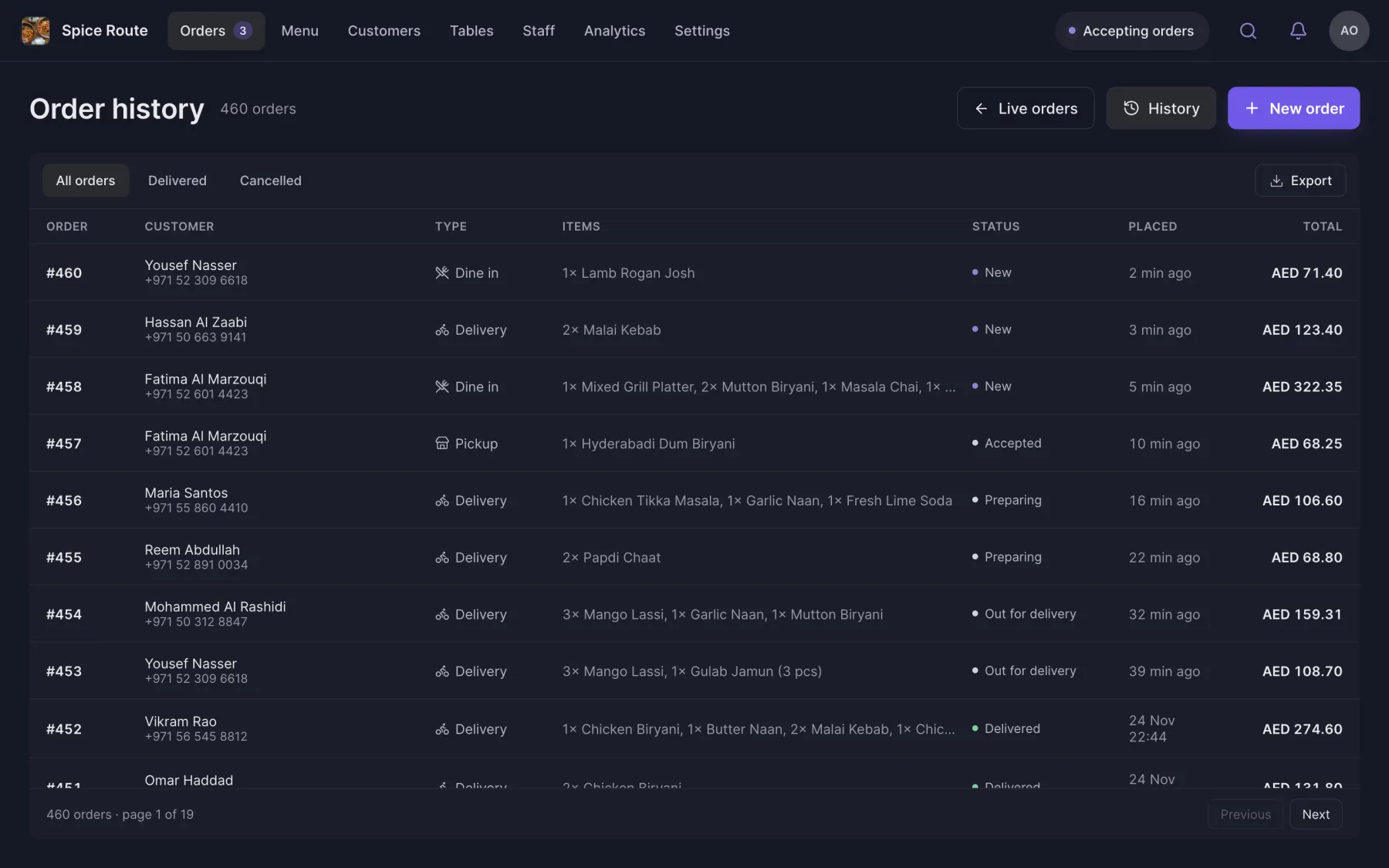
Click History to see every order your restaurant has received, newest first, 25 per page.
- Filter by All orders, Delivered or Cancelled.
- Use Previous and Next at the bottom to move between pages.
- Click Export to download orders as a spreadsheet. See Export orders.
- Click Live orders to go back to the live board.
#On a phone
On a phone the Orders screen shows one stage at a time. Tap the chips at the top (New, Accepted, Preparing, Out for delivery) to switch between them. The number on each chip is how many orders are in that stage.