
Sizes and extras
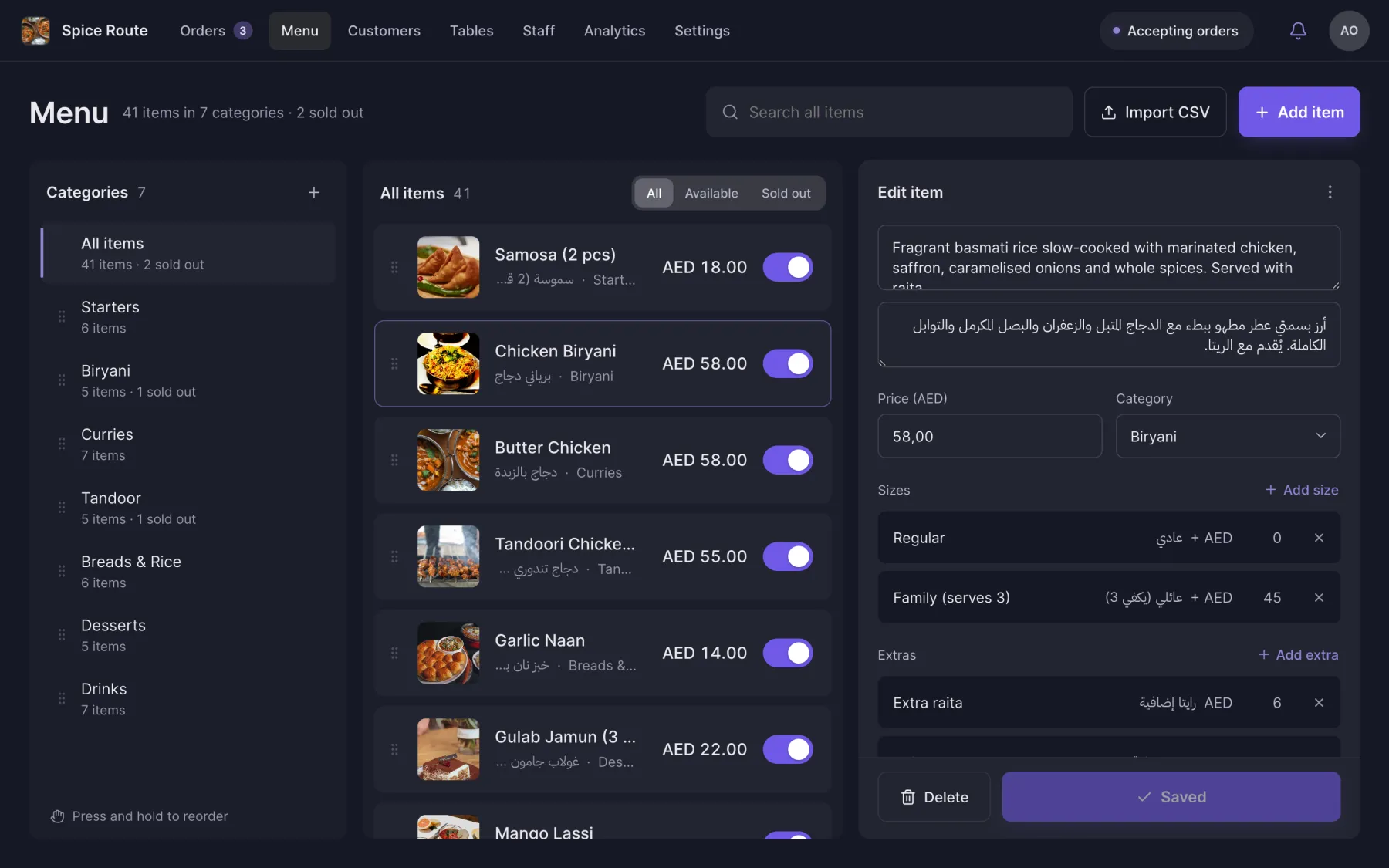
Let customers choose a size, like Regular or Family, and add paid extras, like extra sauce, when they order an item.
Who can do thisOwnerManager
Sizes and extras appear on the item's page on your storefront, and the customer's choices show on the order card, the kitchen ticket and the bill.
| Option | How customers choose | Price |
|---|---|---|
| Sizes | Exactly one. Required when an item has sizes. | An amount added to the item price, for example + AED 45 for Family. Use 0 for the standard size. |
| Extras | Any number, or none. Optional. | The price of the extra, for example AED 6 for extra raita. |
#Add sizes
- Open the item in the editor and scroll to Sizes.
- Click Add size.
- Enter the size name in English (for example Regular) and Arabic (عادي).
- Enter how much it adds to the price. Use 0 for the standard size.
- Repeat for each size, then click Save changes.
Tip
Always add your standard size with 0, so customers can pick it. The item's price is what the standard size costs.
#Add extras
- Scroll to Extras and click Add extra.
- Enter the extra's name in English and Arabic, for example Extra raita / رايتا إضافية.
- Enter its price.
- Repeat for each extra, then click Save changes.
#Remove a size or extra
Click the ✕ at the end of its row, then click Save changes.
#What the customer sees
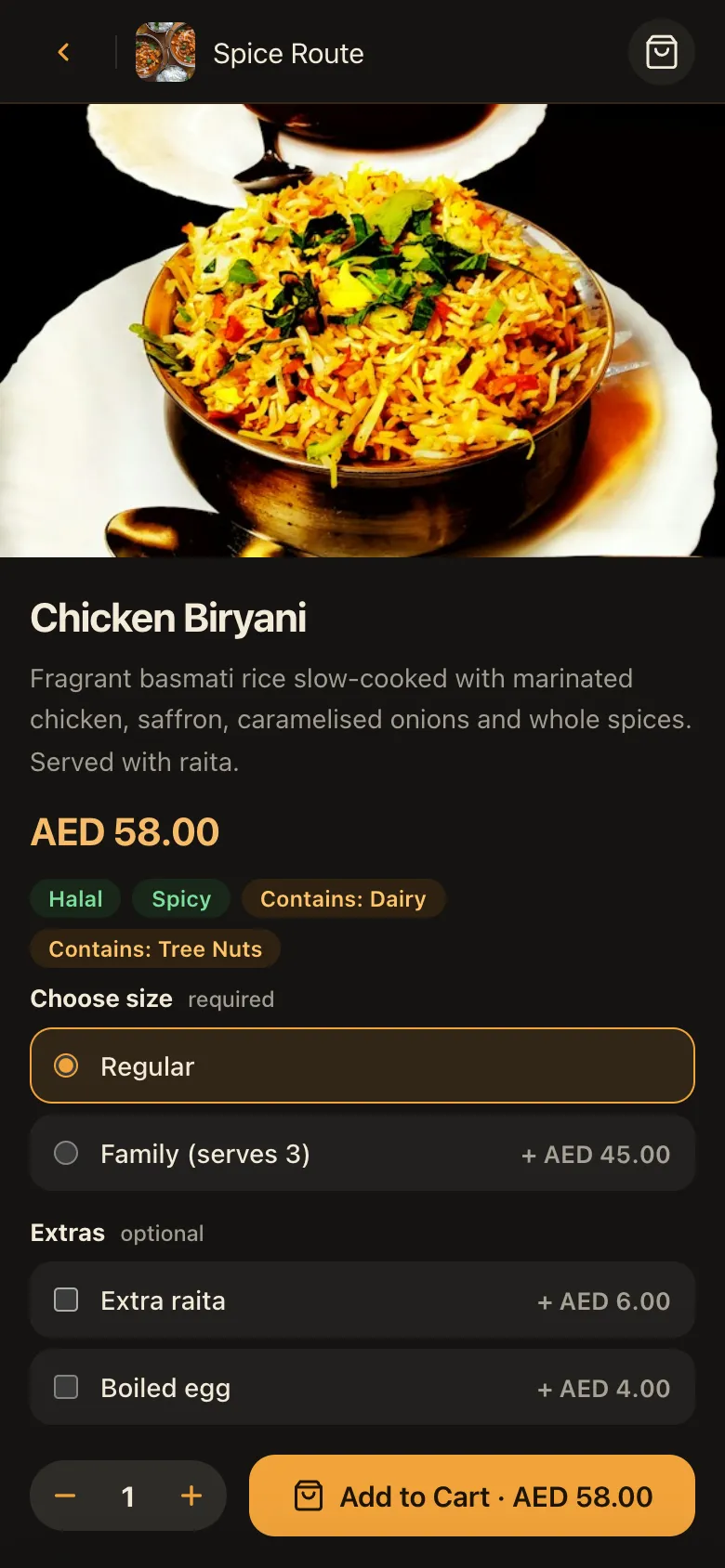
The customer picks a size, ticks any extras, and the Add to Cart button shows the total for the item.